
1. AWS S3 Core Concepts

🚀 Aspiring DevOps & Cloud Engineer | Passionate about Automation, CI/CD, Containers, and Cloud Infrastructure ☁️ I work with Docker, Kubernetes, Jenkins, Terraform, AWS (IAM & S3), Linux, Shell Scripting, and Git to build efficient, scalable, and secure systems. Currently contributing to DevOps-driven projects at Assurex e-Consultant while continuously expanding my skills through hands-on cloud and automation projects. Sharing my learning journey, projects, and tutorials on DevOps, AWS, and cloud technologies to help others grow in their tech careers. 💡 Let’s learn, build, and innovate together!
Course Introduction
Hello and welcome. I’m Sanjeev Thiyagarajan, your instructor for this comprehensive course on Amazon Simple Storage Service (S3). In this course, you'll start with the fundamentals of S3 and progress to advanced features. By the end, you’ll be able to leverage its full set of capabilities.
What Is Amazon S3?
Amazon S3 (Simple Storage Service) is AWS’s scalable, durable, and secure object storage service. It allows you to store and retrieve any amount of data at any time, from anywhere on the web.
Key features:
Unlimited storage capacity
11 9's of durability
High throughput and low latency
Integration with the AWS ecosystem
Common Use Cases
| Use Case | Description | Example |
| Media Storage | Store and serve images, audio, and video | Static assets for web and mobile applications |
| Log & Data Archival | Save application logs and audit trails | Centralized log storage for analytics |
| Static Website Hosting | Host HTML, CSS, JavaScript files | Company landing pages and documentation sites |
| Backup & Disaster Recovery | Maintain backups and snapshots | Daily backups of critical databases |
| Big Data Analytics Pipeline | Store and process large datasets | Data lake storage for AWS EMR or Amazon Athena |
Course Outline
| Module | Topics Covered |
| 1. S3 Fundamentals | Overview of S3, design principles, differences from EBS & EFS |
| 2. Security & Access | Bucket policies, IAM roles, ACLs, and encryption |
| 3. Static Website Hosting | Configuring buckets, custom domains, SSL/TLS with ACM |
| 4. Advanced Features | Versioning, lifecycle rules, cross-region replication, pre-signed URLs, KMS |
Warning
Always review AWS resource cleanup in labs to avoid unexpected charges if you use your own AWS account.
What is AWS S3
Amazon S3 (Simple Storage Service) is a fully managed object storage solution offering industry-leading scalability, data availability, security, and performance. Think of it as a highly durable, highly available file store—similar to Dropbox or Google Drive—but deeply integrated into the AWS ecosystem.
Key Features
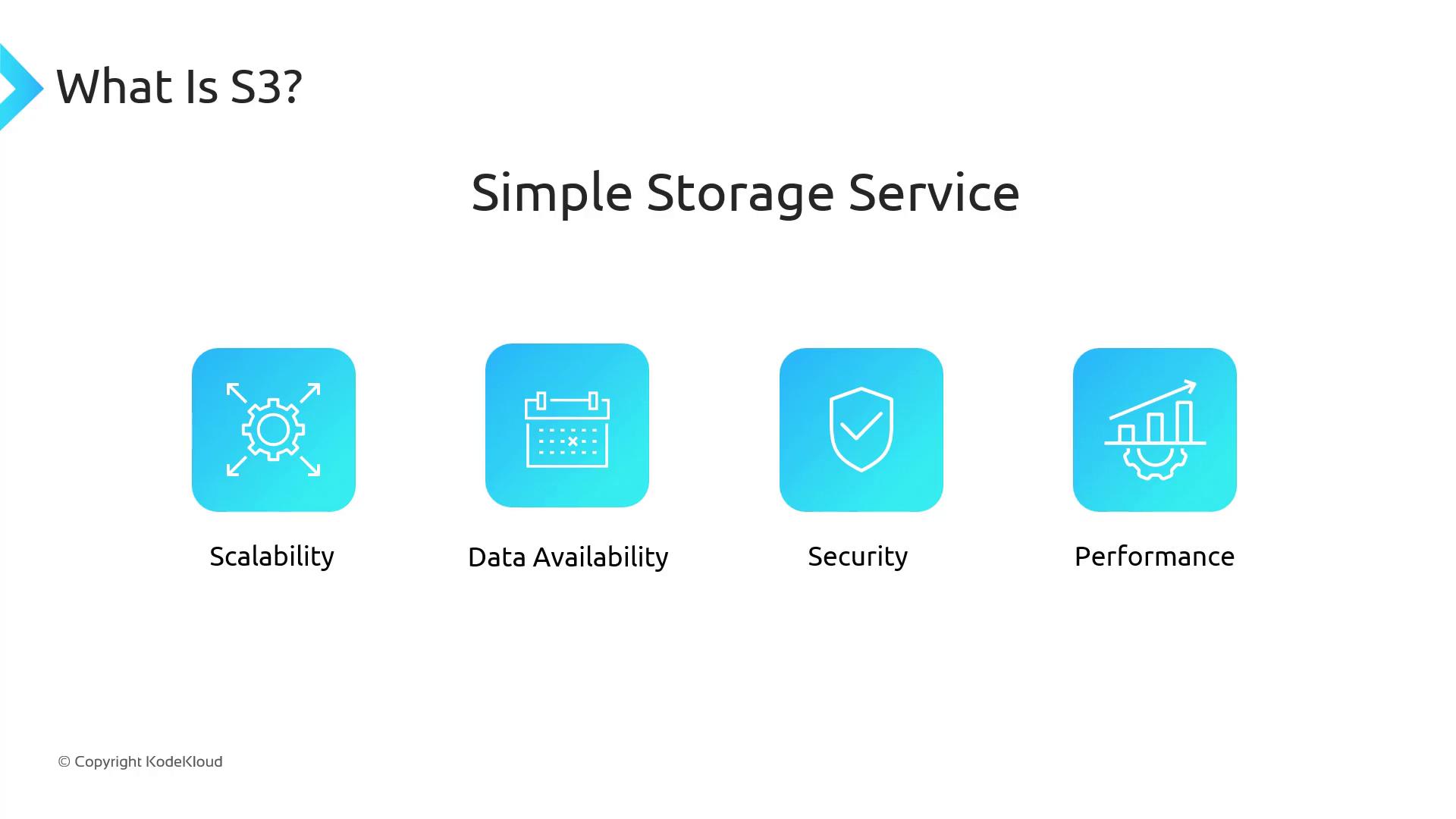
Virtually unlimited storage capacity
99.999999999% (11 9’s) of data durability
Fine-grained access control with IAM policies and bucket policies
Multiple interfaces: Console, AWS CLI, AWS SDKs, REST API
Seamless AWS Integration
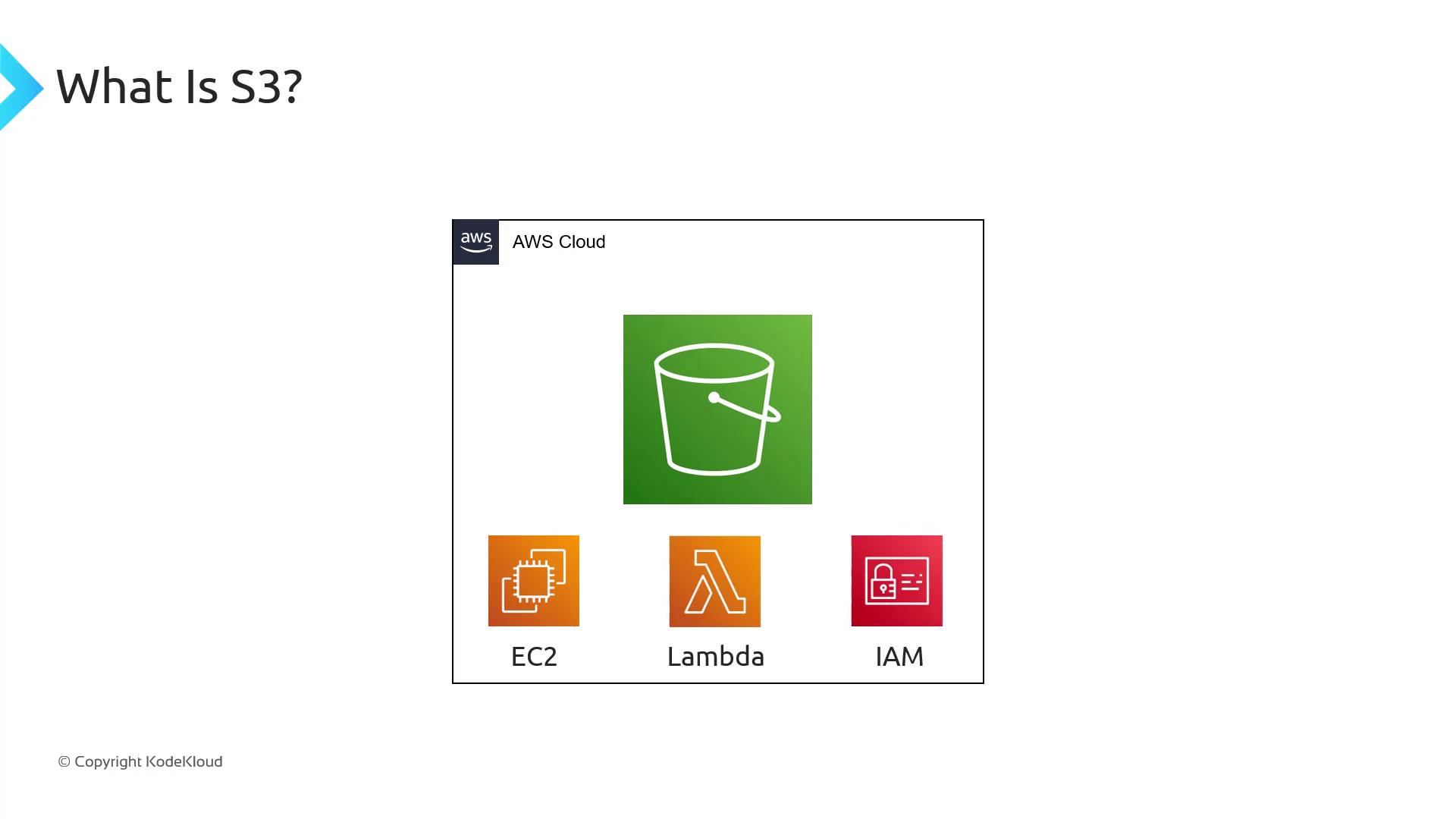
Because S3 is an AWS-native service, it integrates seamlessly with services like EC2, Lambda, and IAM. You can manage buckets and objects using:
AWS Management Console
AWS CLI
AWS SDKs (e.g., Boto3 for Python)
RESTful API calls
Object Storage vs. File and Block Storage
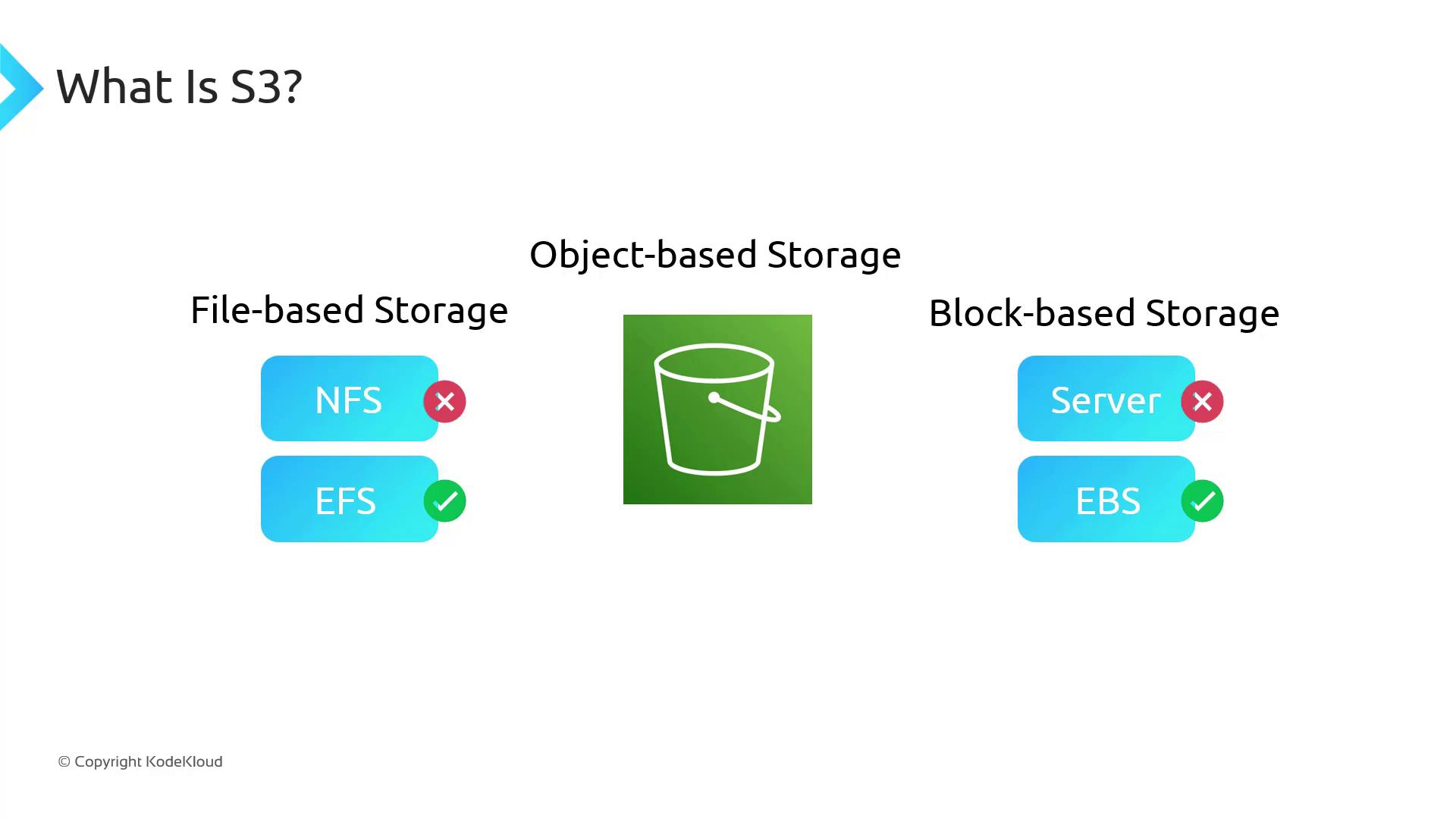
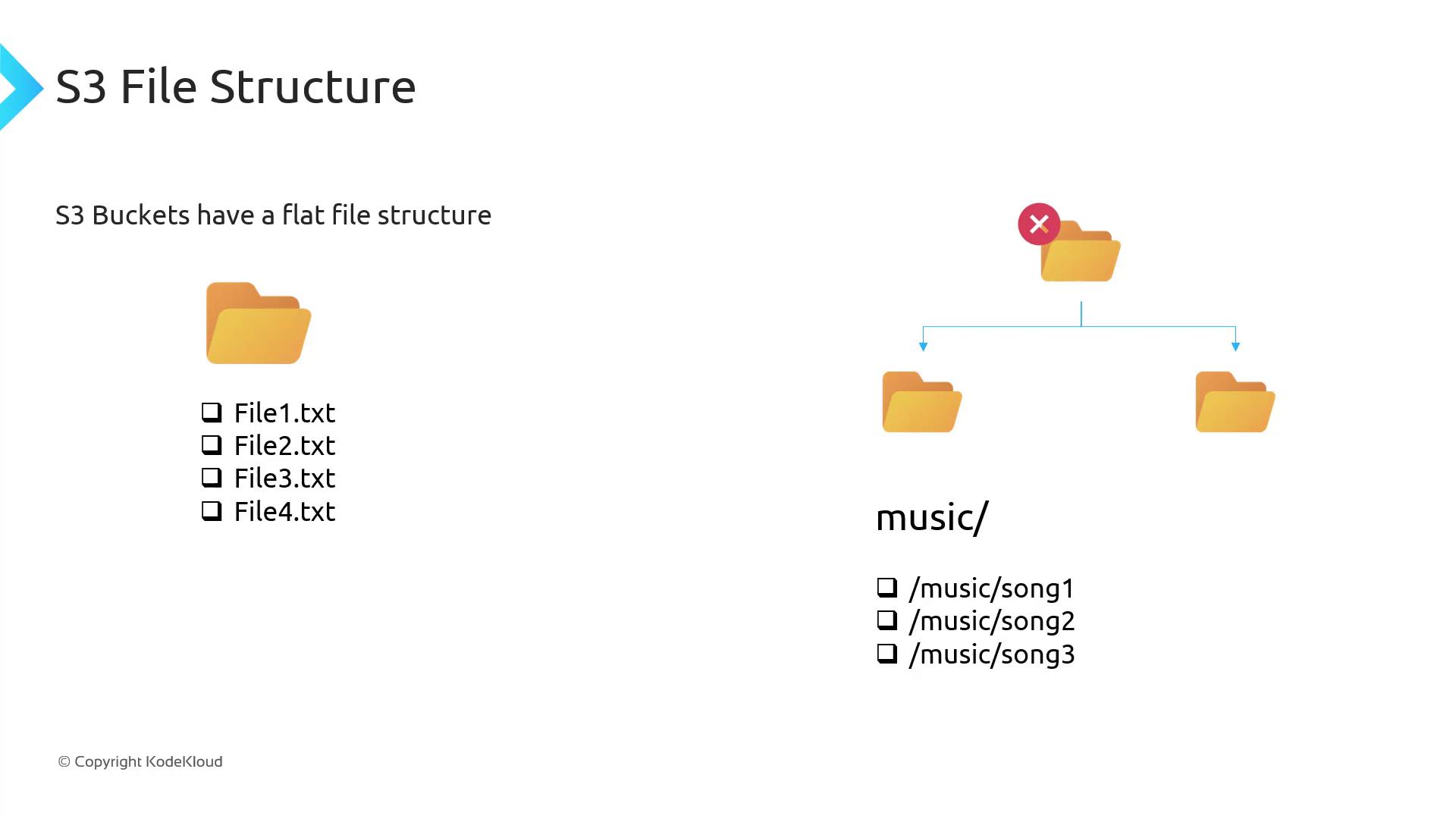
S3 is object-based storage: you upload whole objects (files) rather than individual blocks. It uses a flat namespace rather than a hierarchical filesystem, so you cannot mount an S3 bucket like an EBS volume or NFS share.
| Storage Type | Description | Examples |
| Object | Stores entire files as objects | Amazon S3 |
| File | Shares directories over a network | NFS, Amazon EFS |
| Block | Presents raw block devices to OS | EBS, direct-attached SSDs |
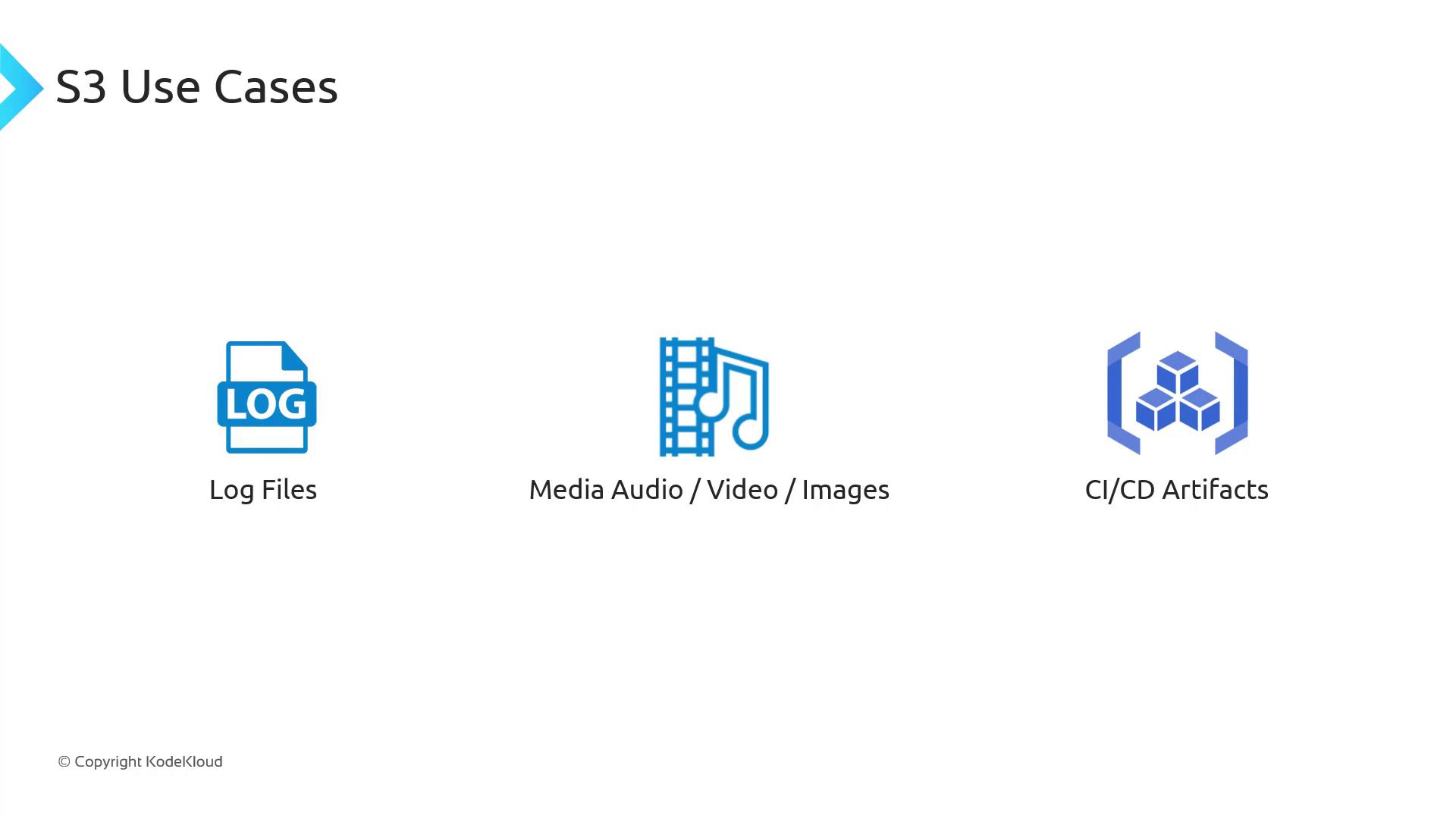
Common Use Cases
Storing application log files
Hosting media assets (images, videos, audio)
Saving CI/CD pipeline artifacts
Real-World Example: Offloading Media for a Website
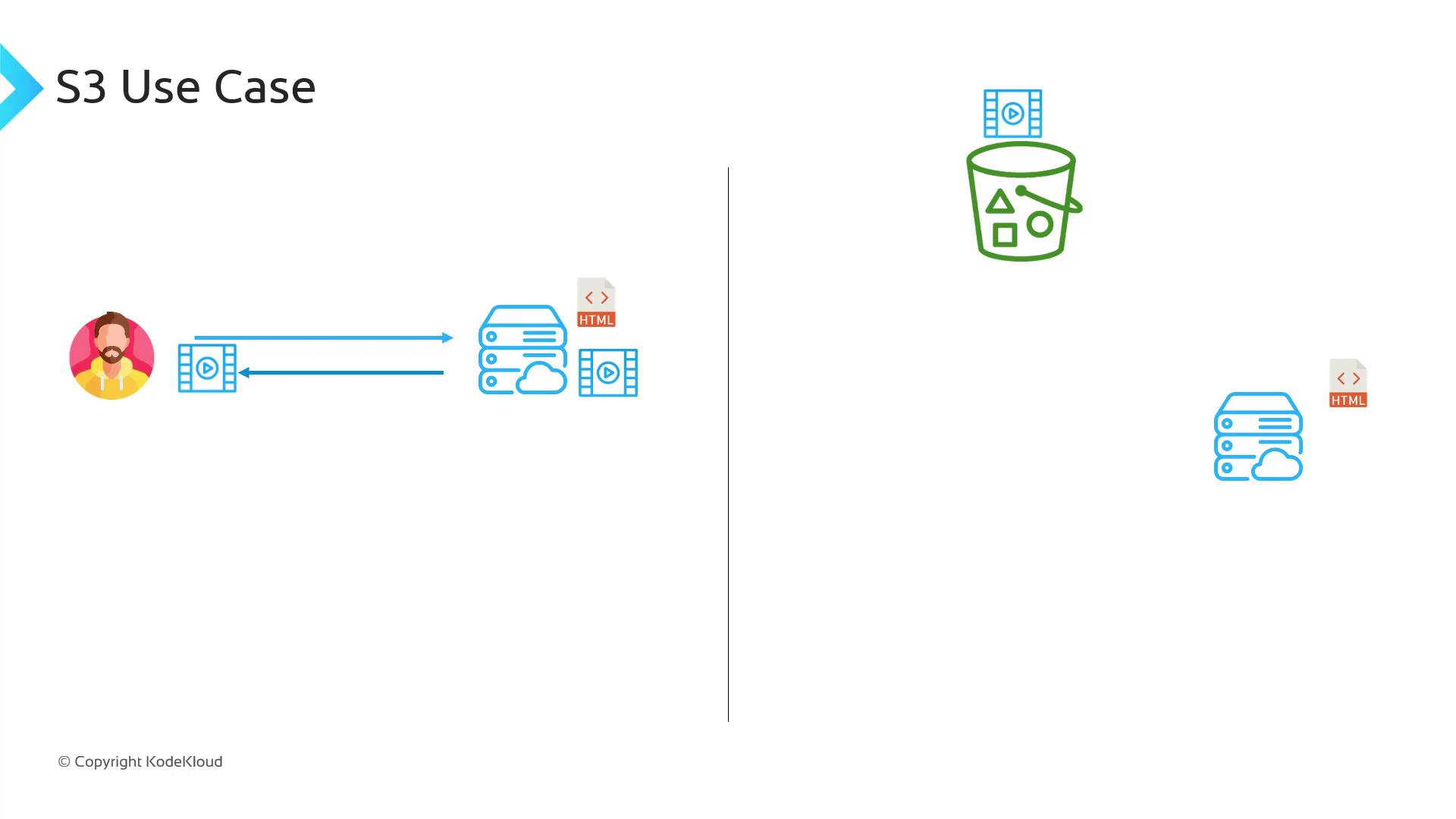
In traditional web hosting, your server handles HTML, CSS, JavaScript, and all media. As traffic scales—imagine YouTube or Netflix—storing petabytes of video on web servers becomes costly and unscalable.
With S3:
Keep only static assets (HTML/CSS/JS) on your web server
Offload large media files to an S3 bucket
Reference S3 URLs in your HTML so browsers fetch content directly from S3
Key Terminology
Buckets
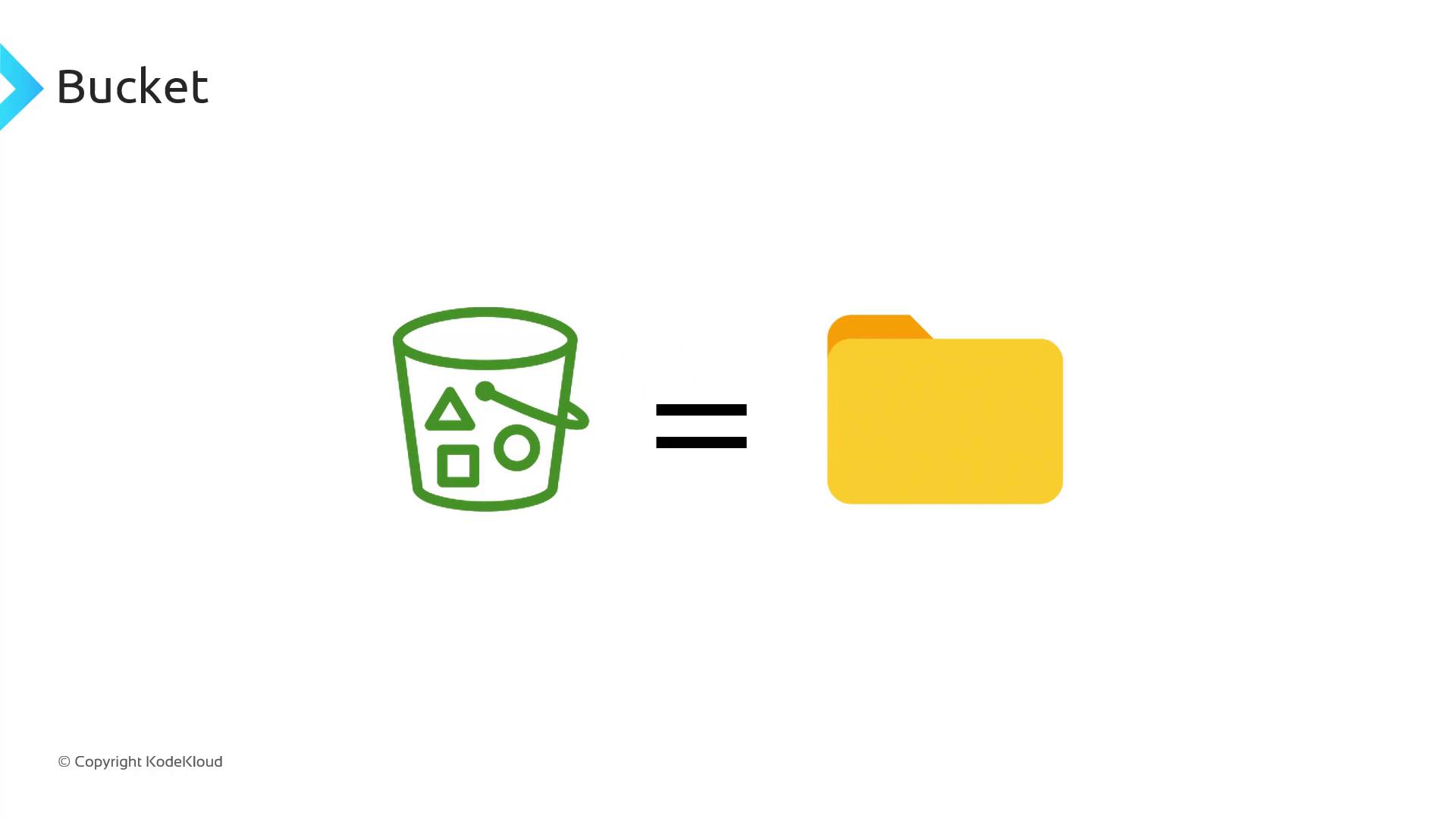
A bucket is a container for objects—think of it as a top-level folder. Names must be globally unique across all AWS accounts.
# Create an S3 bucket in us-east-1
aws s3api create-bucket \
  --bucket my-unique-bucket-name \
  --region us-east-1
Objects
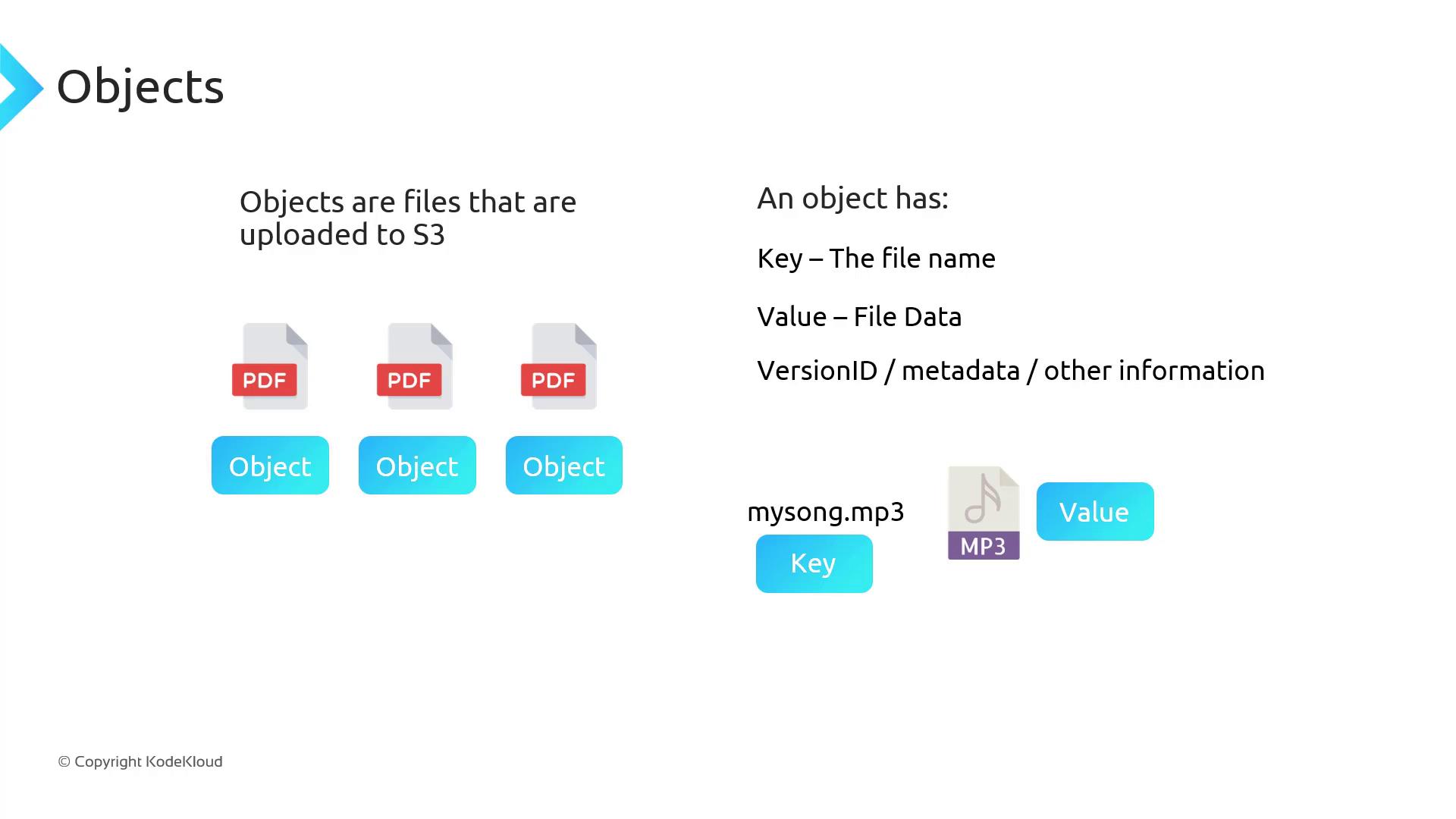
An object is any file stored in S3. Each object includes:
Key: the unique object name (e.g.,
photos/vacation.jpg)Value: the actual file data
Metadata: custom or system attributes (e.g.,
Content-Type)Version ID: if versioning is enabled
# Upload a file to S3
aws s3 cp ./vacation.jpg s3://my-unique-bucket-name/photos/vacation.jpg
Flat Namespace and “Folders”
Under the hood, S3 is a flat key-value store. The console mimics directories by treating prefixes (text before a /) as folders.
music/song1.mp3
music/song2.mp3
music/song3.mp3
- These keys appear under a
music/folder in the console but are stored flat in S3.
Durability and Availability
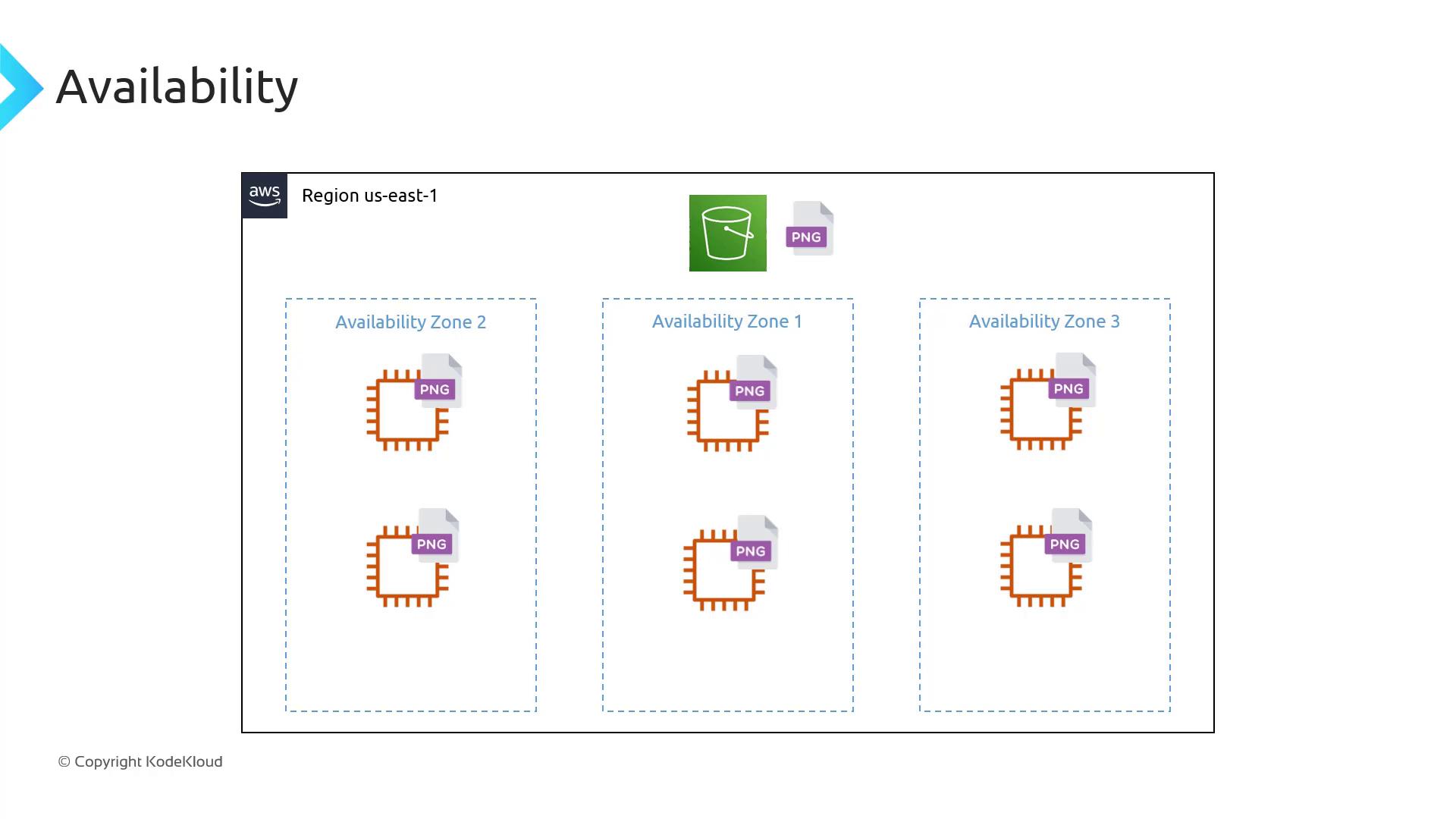
When you upload to S3, AWS replicates your data across multiple servers and Availability Zones (AZs) within a region, ensuring high durability and availability—even if an AZ fails.
Bucket Naming and Global Uniqueness
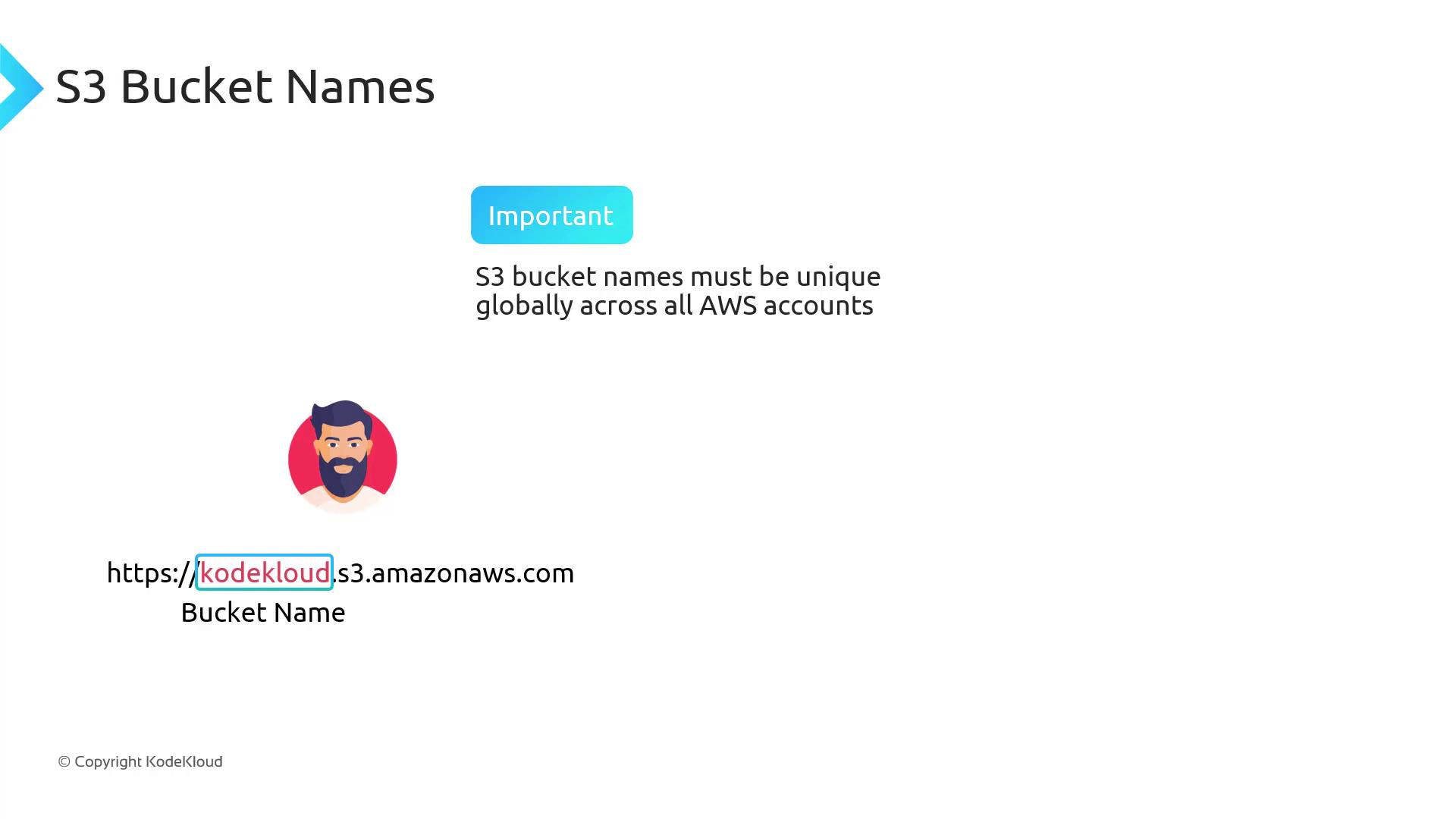
Each bucket name must be unique across all AWS accounts and regions. The bucket name appears in the URL:
https://my-unique-bucket-name.s3.amazonaws.com/
Warning
Choose bucket names carefully. Renaming or deleting buckets can disrupt applications that rely on them.
Limits and Restrictions
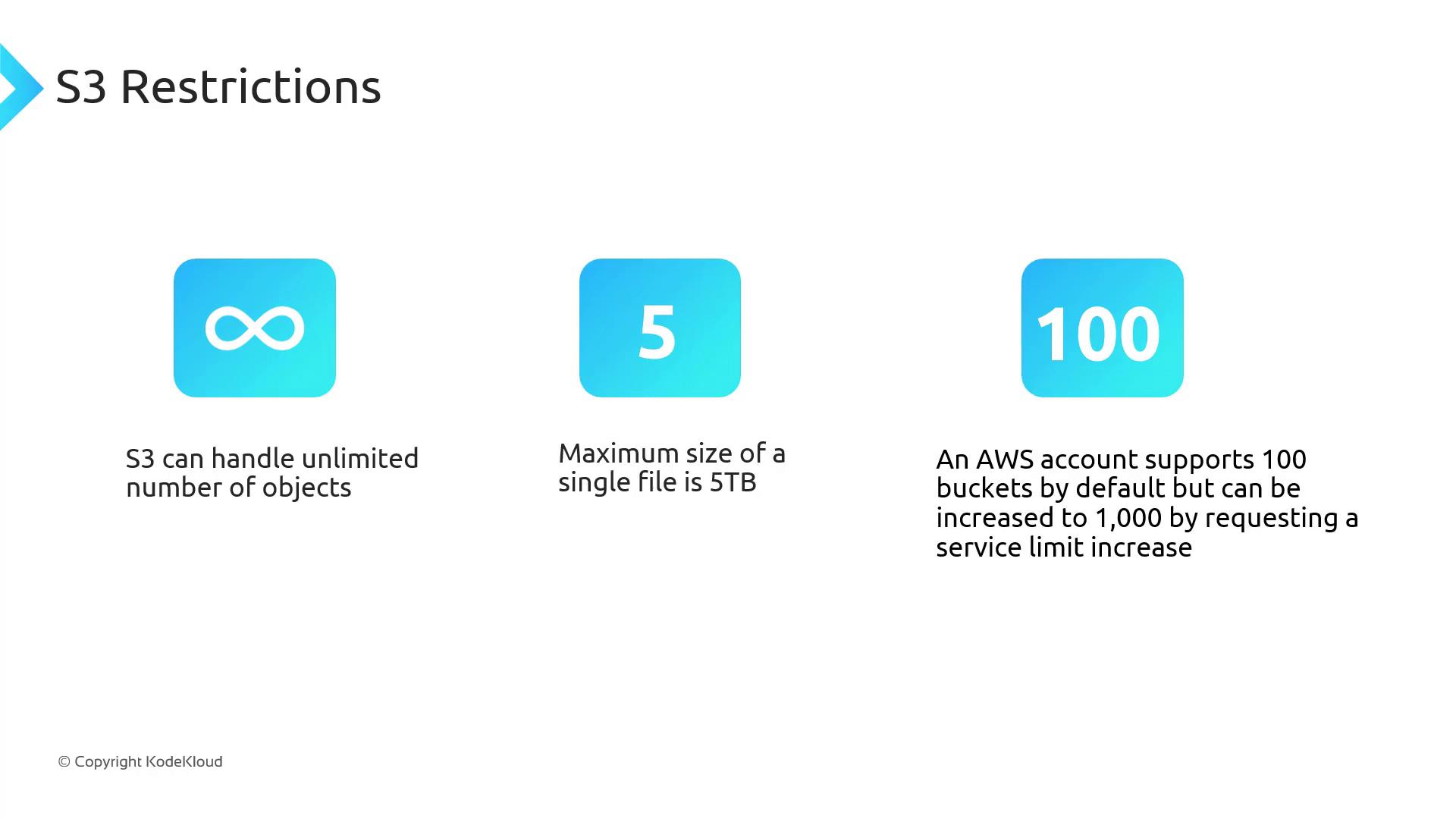
| Resource | Limit |
| Number of buckets | 100 per account (increase to 1,000) |
| Maximum object size | 5 TB |
| Objects per bucket | Unlimited |
Note
You can request a service quota increase for more buckets or higher throughput in the AWS Console under Service Quotas.
S3 Basics Demo
Learn how to create, configure, and manage an Amazon S3 bucket. In this step-by-step guide, we’ll cover the global namespace, bucket configuration, uploading and organizing objects, and safely deleting buckets.
Accessing the S3 Console
Sign in to the AWS Management Console and search for S3.
Depending on your account state, you’ll see one of two views:
If you have no buckets, an intro screen appears with a Create bucket button:
Otherwise, you’ll see your existing buckets and the Create bucket option:
Note
Amazon S3 uses a global namespace. The top‐left region selector is always Global and displays buckets from all regions. You pick a region only when creating a new bucket.
Creating a Bucket
Click Create bucket.
Enter a globally unique name. If your choice is taken (e.g.,
demo), you’ll see an error: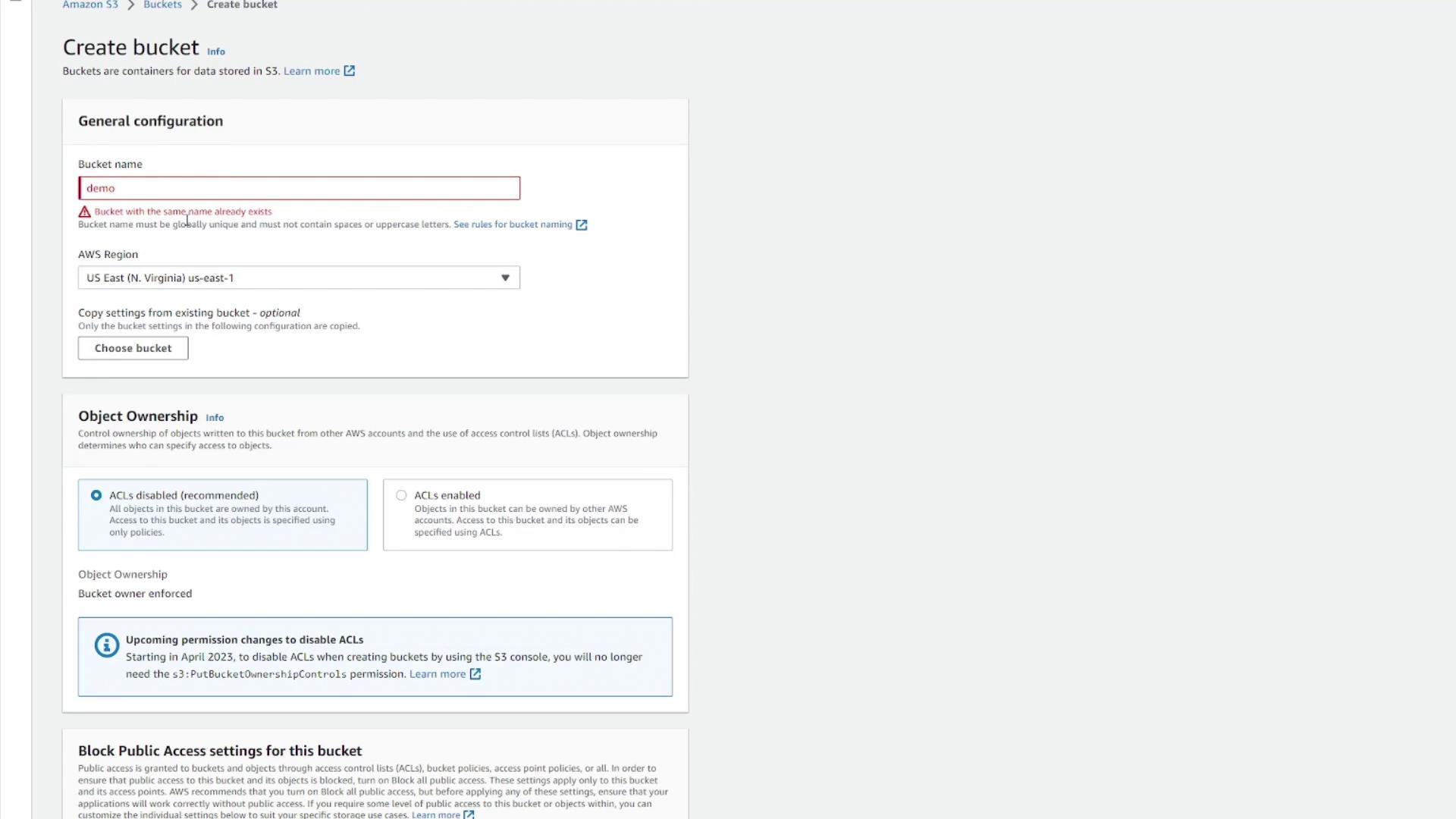
Note
For bucket naming rules (character limits, allowed characters, and examples), see the Bucket Naming Rules.
Choose a unique name (for example,
kodekloud-demo-123):Select the target region (e.g., US East (N. Virginia) us-east-1).
Configure features or leave defaults:
Object ownership & ACLs
Block public access
Versioning & encryption
Tags & advanced settings
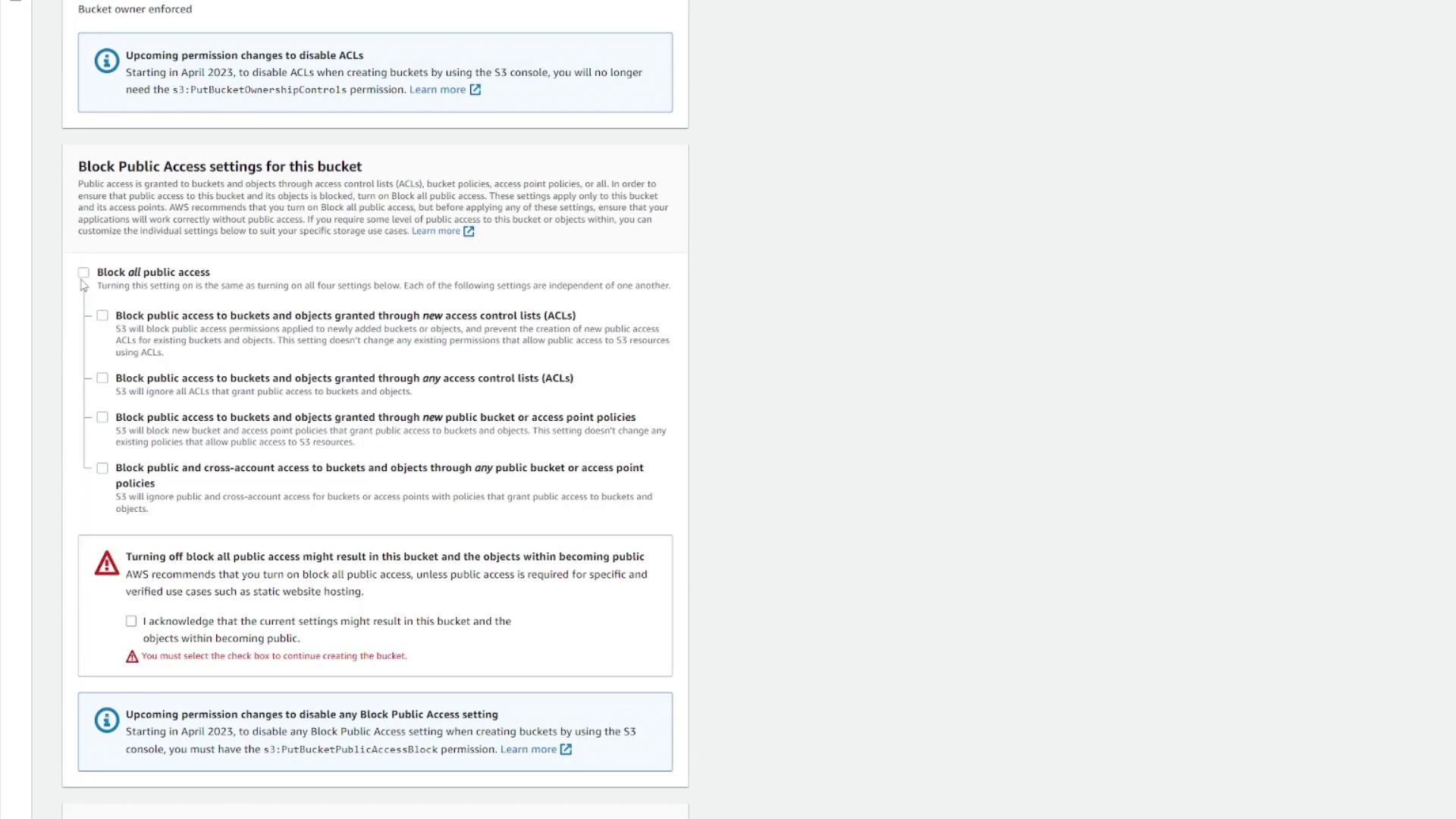
- Click Create bucket. You’ll see your new bucket in the list:
Exploring Bucket Details
Click your bucket’s name to open its overview. You’ll find tabs for Objects, Properties, Permissions, Metrics, and Management.
| Feature | Description |
| Region & ARN | Shows the bucket’s region and Amazon Resource Name. |
| Creation Date | Timestamp when the bucket was created. |
| Versioning | Indicates if object versioning is enabled or disabled. |
| Encryption | Default server-side encryption (SSE) settings for new objects. |
| Other Options | Logging, CloudTrail, events, transfer acceleration, object lock, requester pays, and website hosting. |
In Permissions, manage ACLs or bucket policies:
Under Metrics, view CloudWatch data like total storage and object count. Management lets you set lifecycle rules, replication, inventory, and access points:
Uploading Objects
Go to the Objects tab and click Upload.
Drag and drop files or use Add files. For example, upload
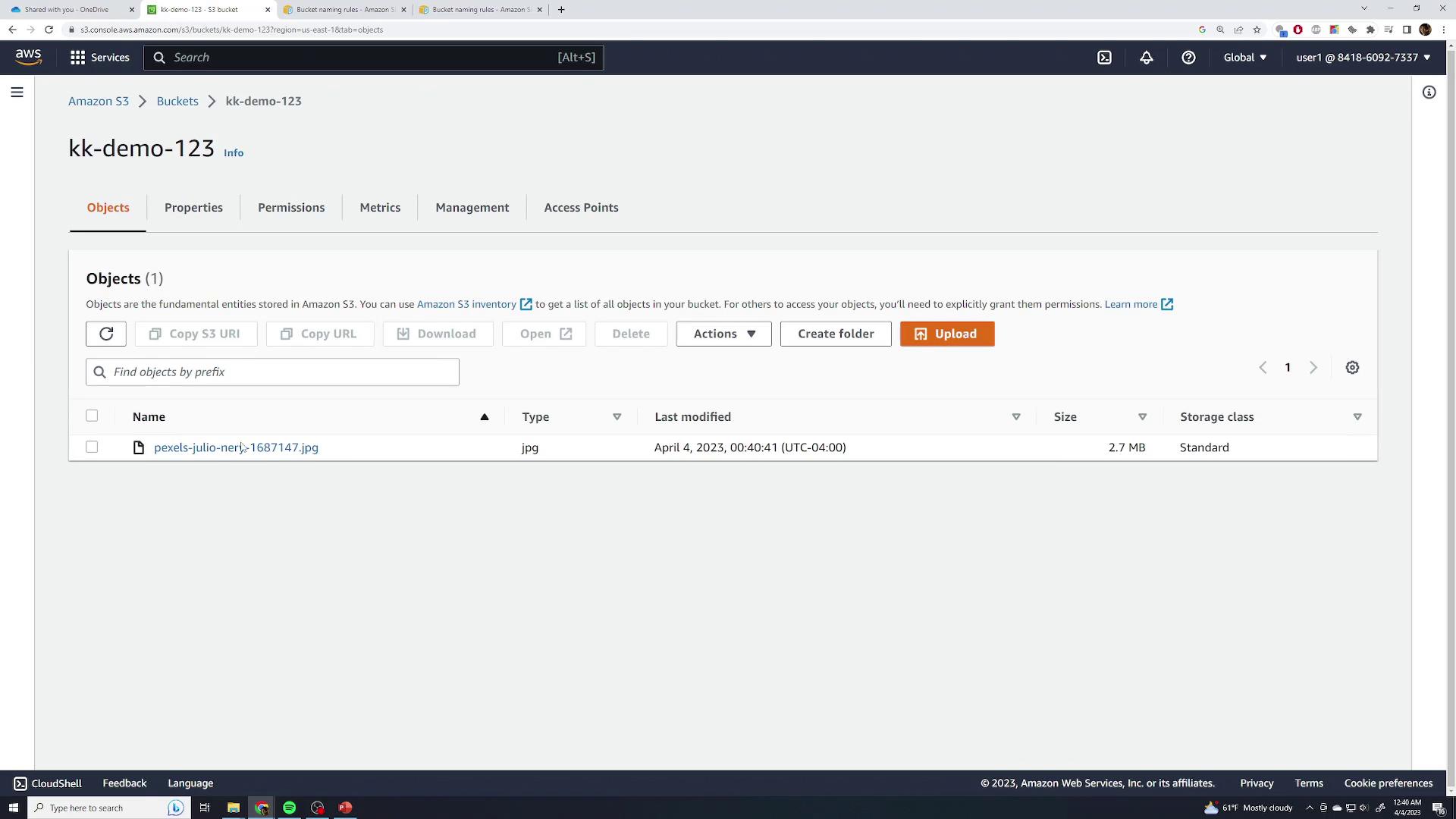
pexels-julio-nery-1687147.jpg(2.7 MB JPEG):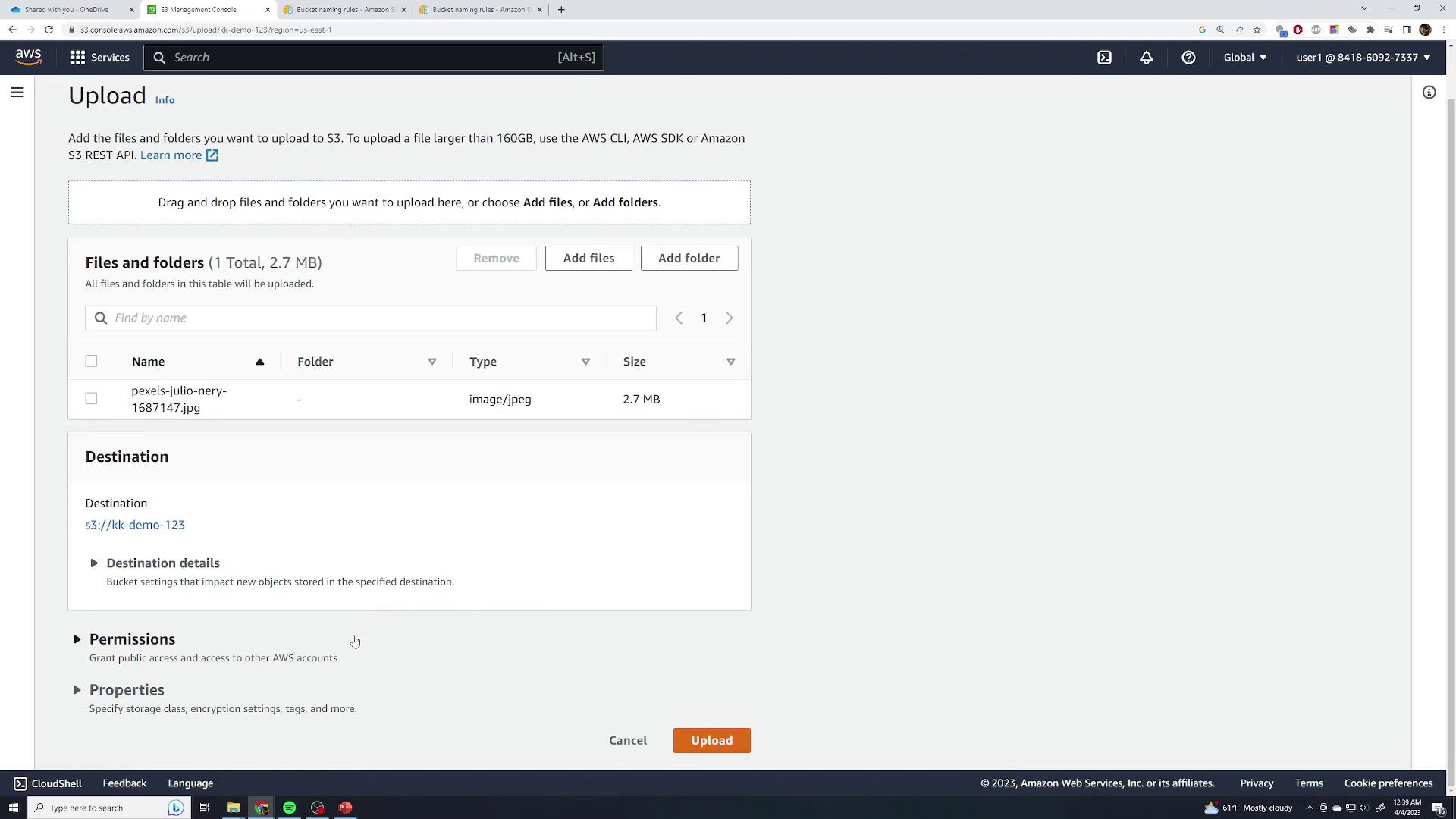
Accept defaults for permissions, storage class (Standard), and skip advanced settings.
Click Upload and wait for completion:
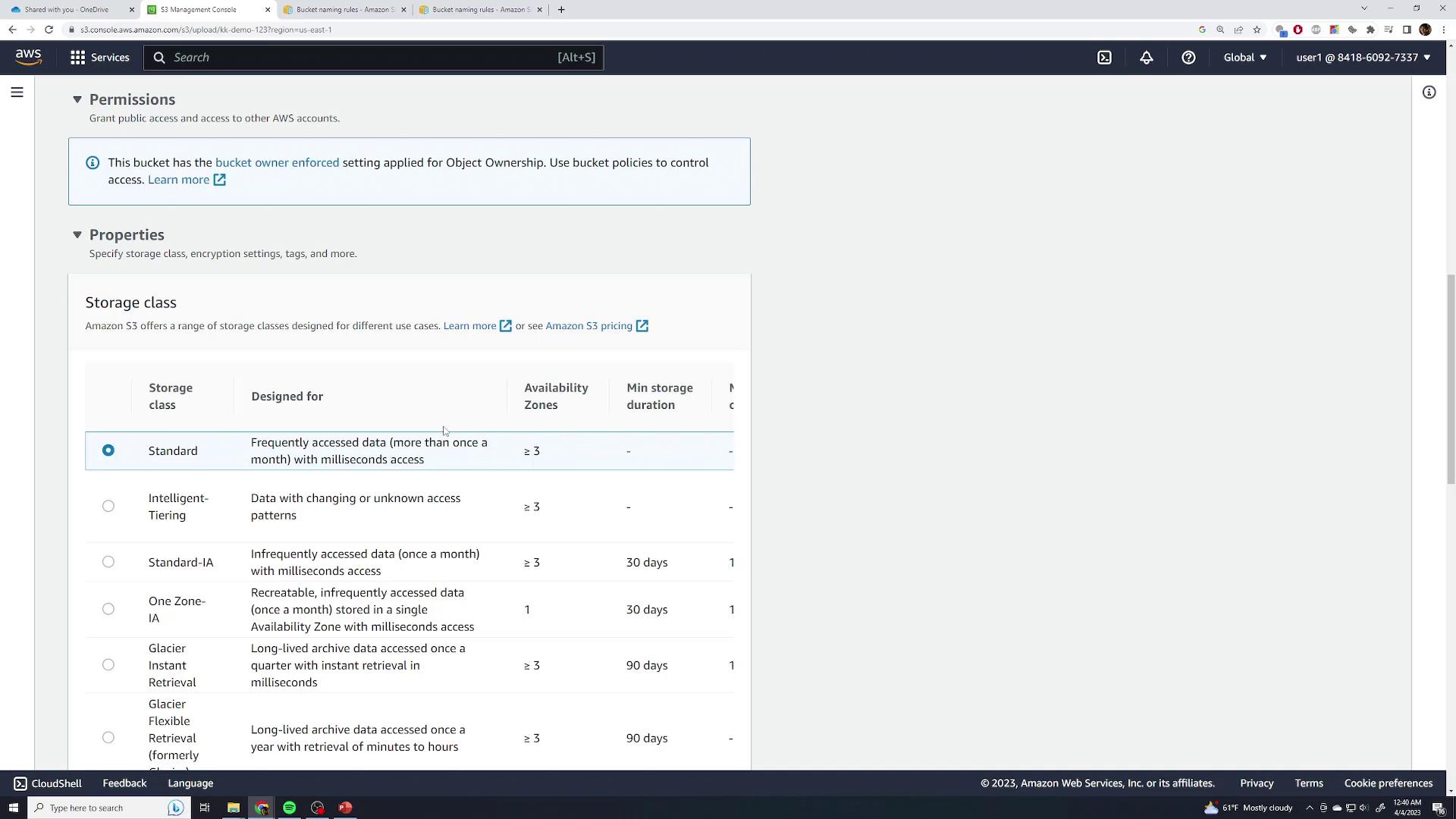
After closing the dialog, you’ll see your file listed:
Object Details
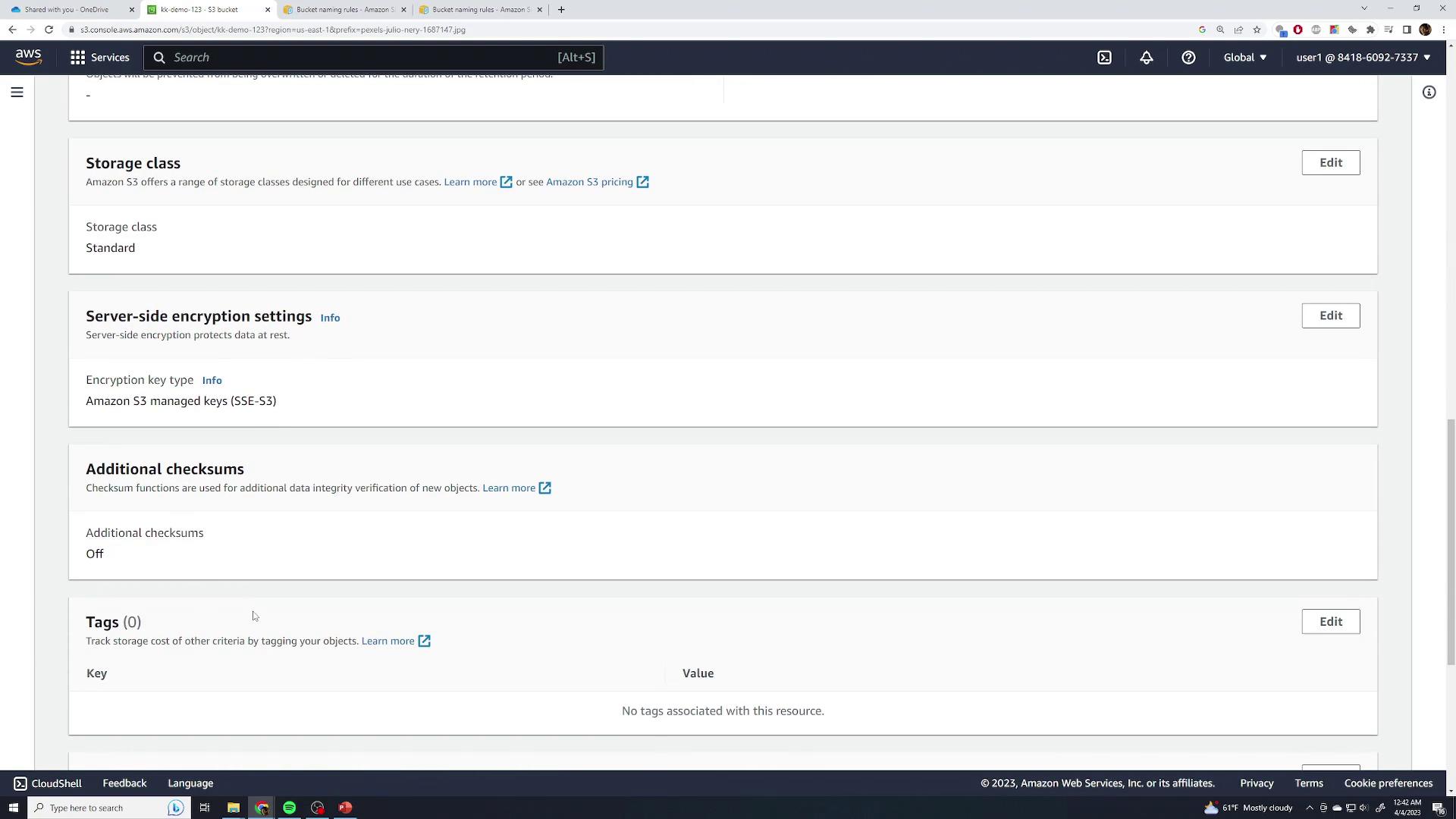
Click the object name to inspect:
Size, last modified, and region
Object URI and ARN
ETag, object URL
Per-object settings: storage class, SSE, checksums, tags, and locks
Accessing Objects
Attempting to GET the object URL anonymously returns:
<Error>
  <Code>AccessDenied</Code>
  <Message>Access Denied</Message>
  <RequestId>PXX0A25XAZ252WZ0</RequestId>
  <HostId>Rh0s1Dk51BtkU1N0BXY4j2p2KLvWeg5eSu/Ry1NkxAMXFtbFQKTg=</HostId>
</Error>
Note
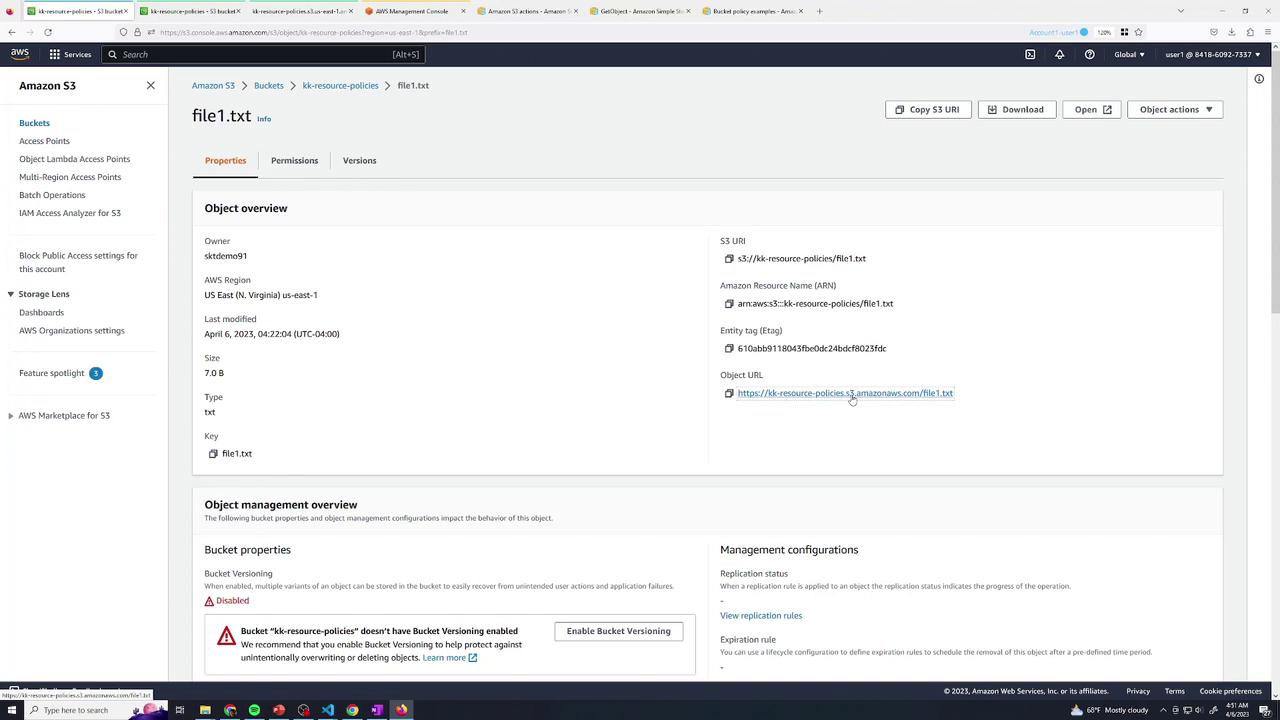
By default, both buckets and objects are private. Use the Open button in the console (with your AWS credentials) to view private files, or adjust permissions for public access.
Organizing Objects with Folders
Although S3 has a flat key-value structure, the console lets you simulate folders:
Click Create folder, enter a name (e.g.,
food), and confirm: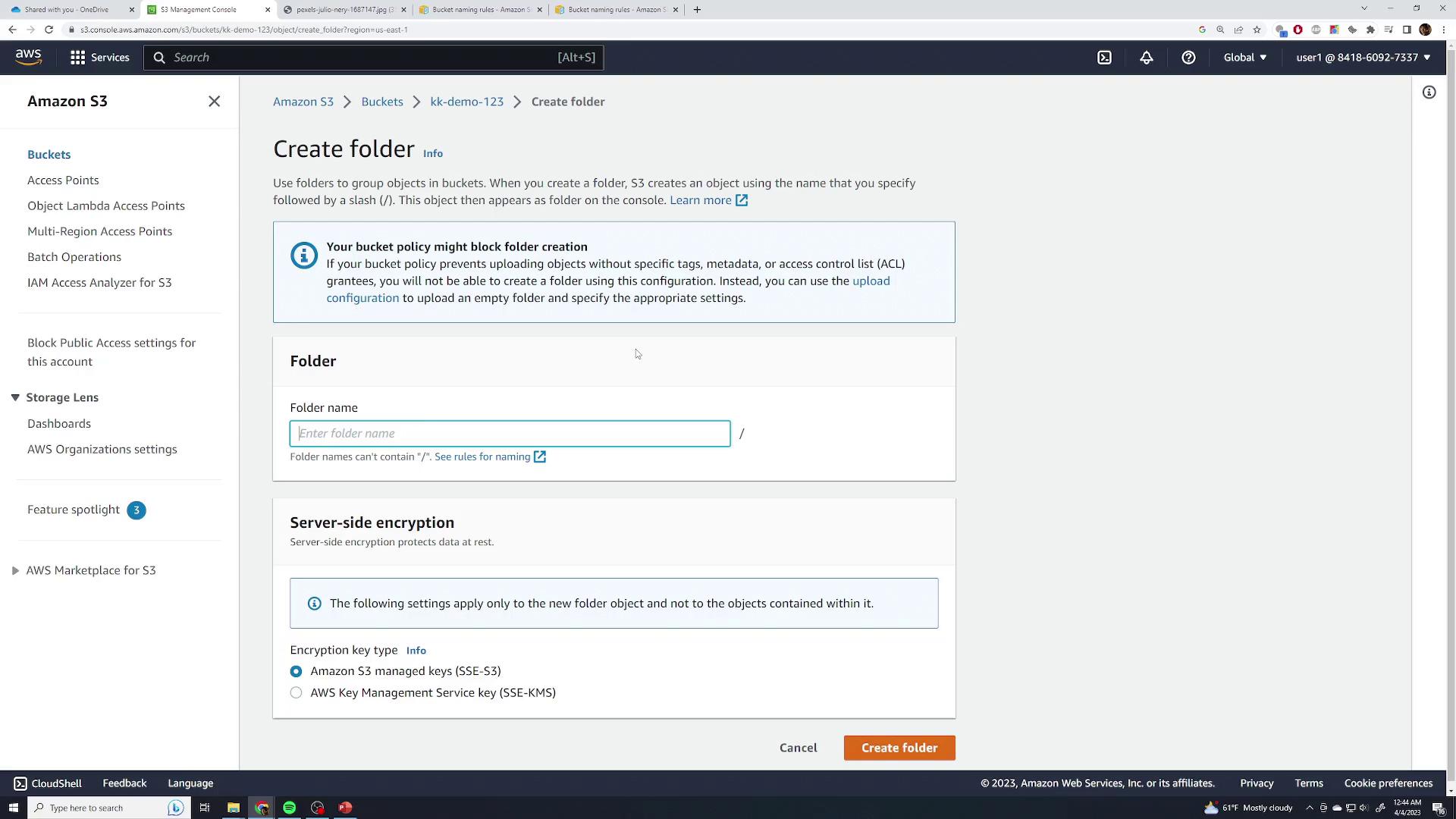
Open the folder and upload images (burger, pizza, sandwich, steak):
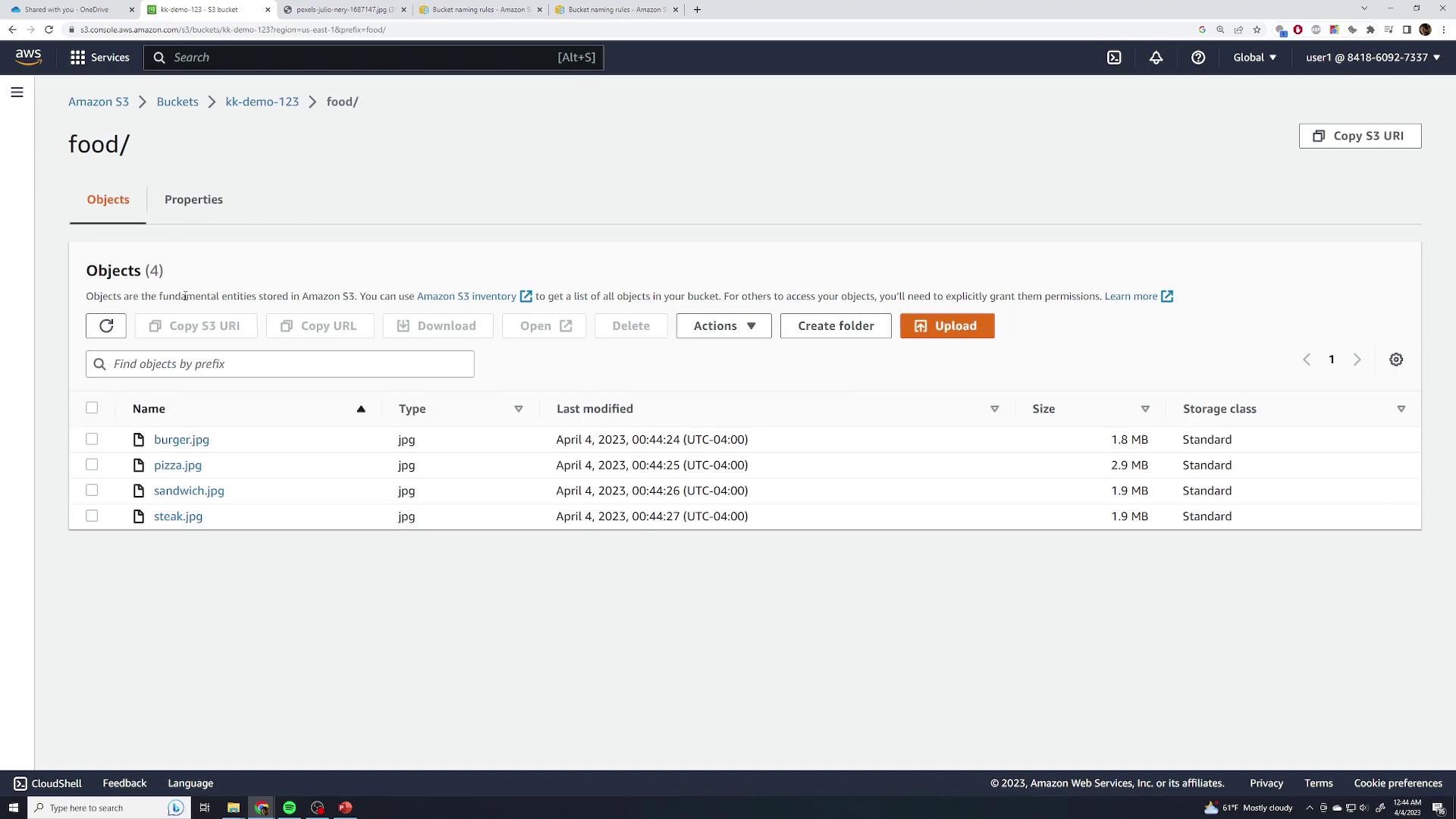
Each object key is prefixed with food/. Permissions and access behave identically to root-level objects.
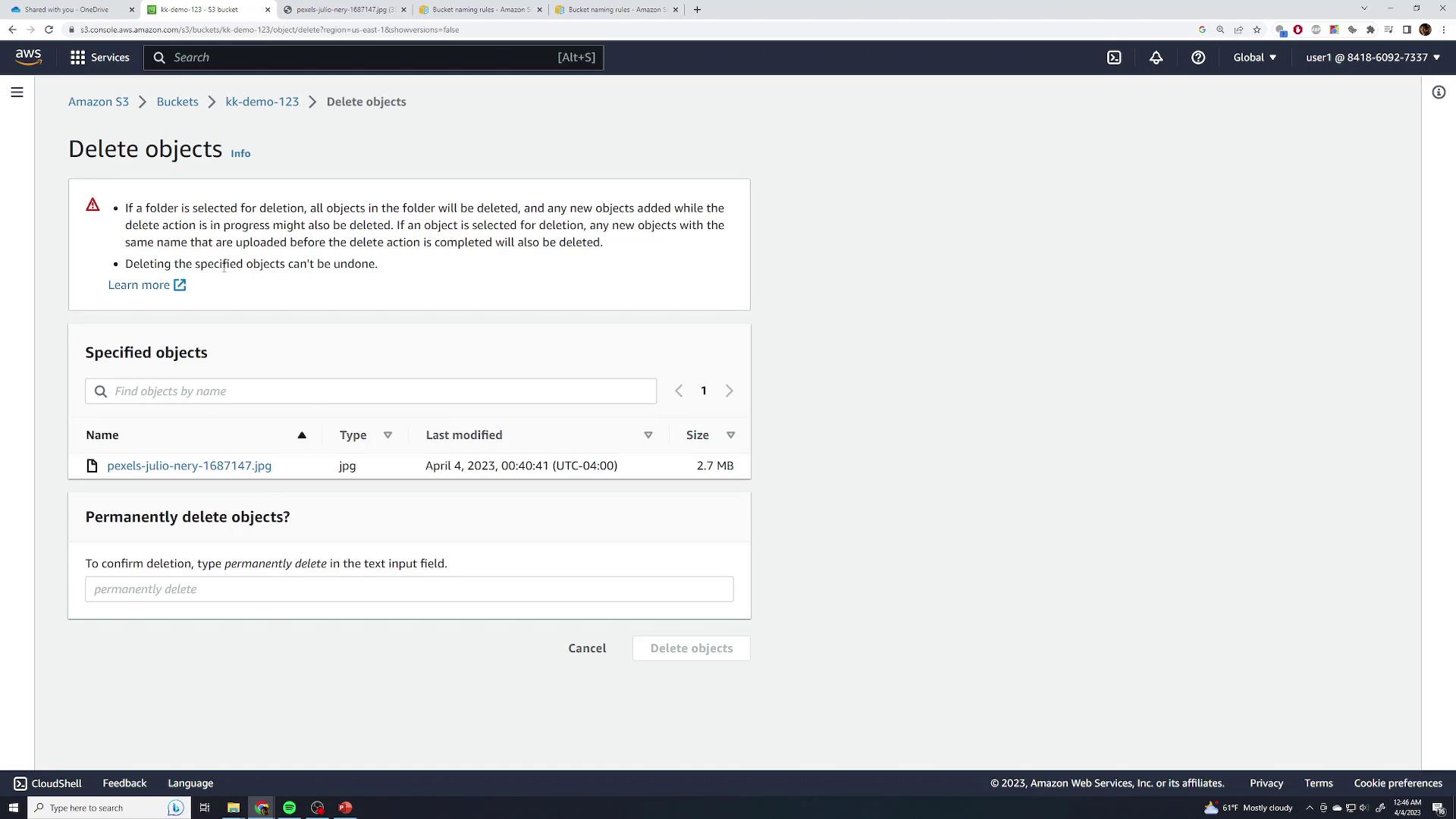
Deleting Objects
Select the object(s) you want to remove.
Click Delete, type permanently delete, and confirm:
Warning
Without versioning enabled, deletion is permanent and cannot be undone.
Moving Objects
S3 doesn’t support a native “move” operation. Instead, you rename an object by copying it to a new key prefix:
Create a new folder (e.g.,
test) under your bucket:
Select Actions > Move, set the destination key (e.g.,
food/test/steak.jpg), or browse and apply. The object is effectively renamed under the new prefix.
Deleting the Bucket
To delete an S3 bucket, it must be empty:
Attempting to delete a non-empty bucket shows an error:
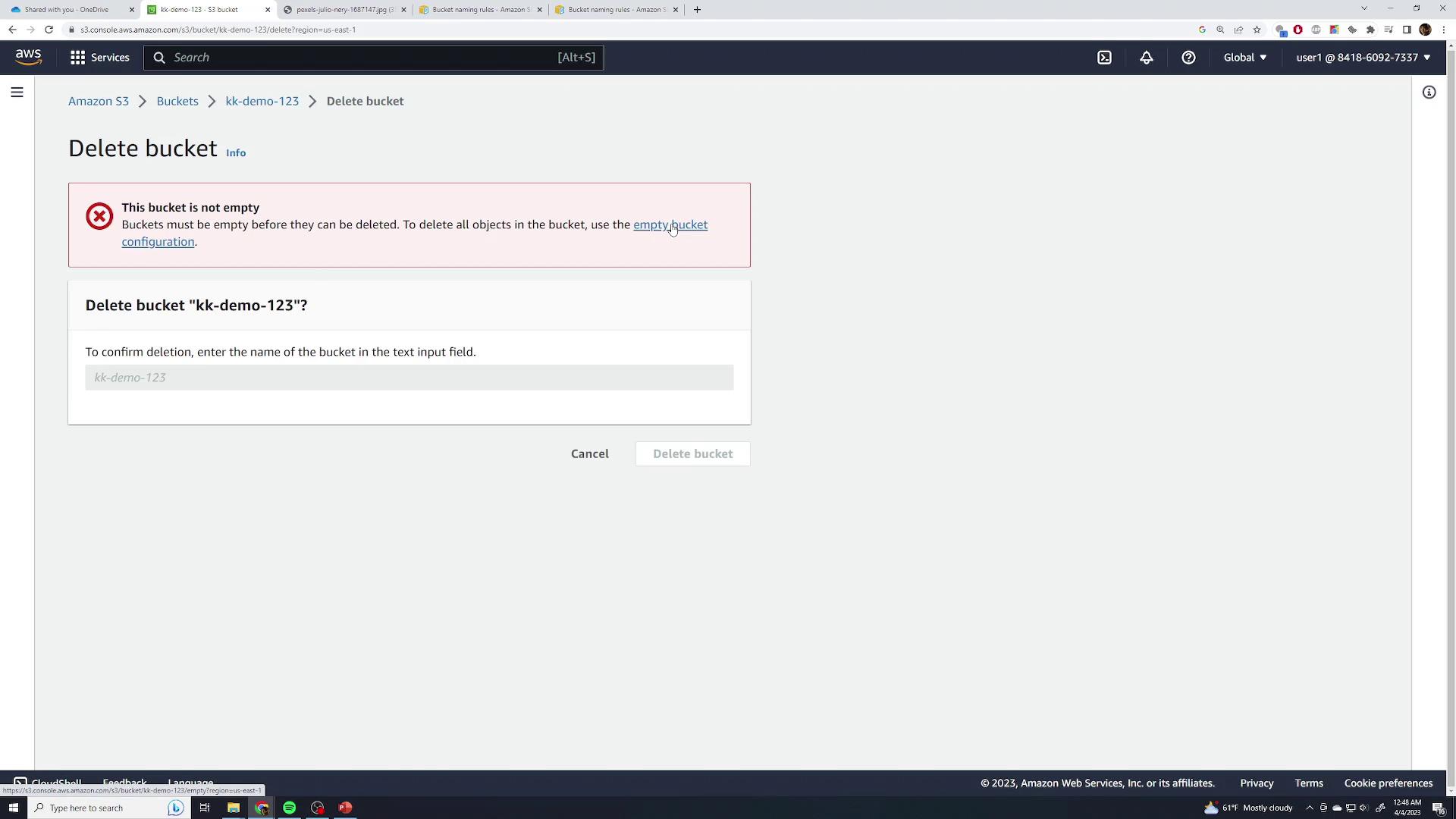
Click Empty, type permanently delete, and confirm to clear contents.
Finally, select Delete bucket, enter the bucket name, and confirm.
Storage Classes
Amazon S3 offers multiple storage classes tailored to different access patterns, durability needs, and cost objectives. Selecting the right class helps you optimize costs and ensure your data is available when you need it.
Overview of S3 Storage Classes
| Storage Class | Access Pattern | Durability | Availability Zones | Retrieval | Minimum Duration | Use Case |
| S3 Standard | Frequent | 11 nines (99.999999999%) | ≥3 AZs | Milliseconds | None | Website hosting, hot data |
| S3 Standard-IA | Infrequent | 11 nines | ≥3 AZs | Milliseconds | 30 days | Long-lived but infrequent data |
| S3 One Zone-IA | Infrequent | 11 nines (in one AZ) | 1 AZ | Milliseconds | 30 days | Secondary backups, infrequent |
| S3 Glacier Instant Retrieval | Rare, immediate | 11 nines | ≥3 AZs | Milliseconds | 90 days | Archive with immediate access |
| S3 Glacier Flexible Retrieval | Rare, delayed | 11 nines | ≥3 AZs | Minutes–Hours | 90 days | Cost-optimized archives |
| S3 Glacier Deep Archive | Almost never | 11 nines | ≥3 AZs | Hours–Days | 180 days | Compliance, long-term retention |
| S3 Intelligent-Tiering | Variable | 11 nines | ≥3 AZs | Automatic | None | Automated cost optimization |
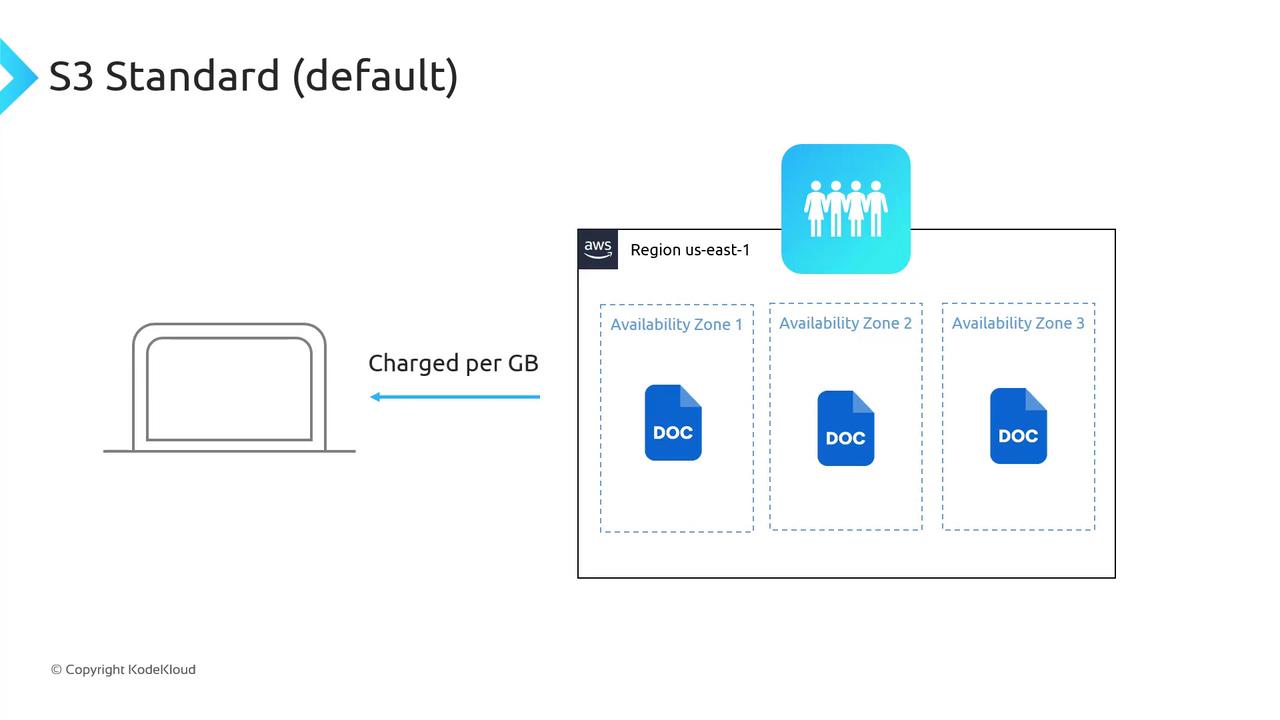
S3 Standard
The default class for frequently accessed (“hot”) data:
Durability: 99.999999999%
Availability: Tolerates two concurrent AZ failures
Latency: Millisecond reads/writes
Pricing:
Storage: per GB/month
Data ingress: Free
Data egress: per GB (no retrieval fee)
S3 Standard-IA (Infrequent Access)
For long-lived data accessed less frequently:
Same durability as S3 Standard
Millisecond access latency
Pricing:
Storage: lower per GB than Standard
Retrieval fee: per GB + egress rate
Minimum duration: 30 days
Minimum object size: 128 KB
Standard-IA is perfect for backups and replicas that you need fast access to but rarely retrieve.
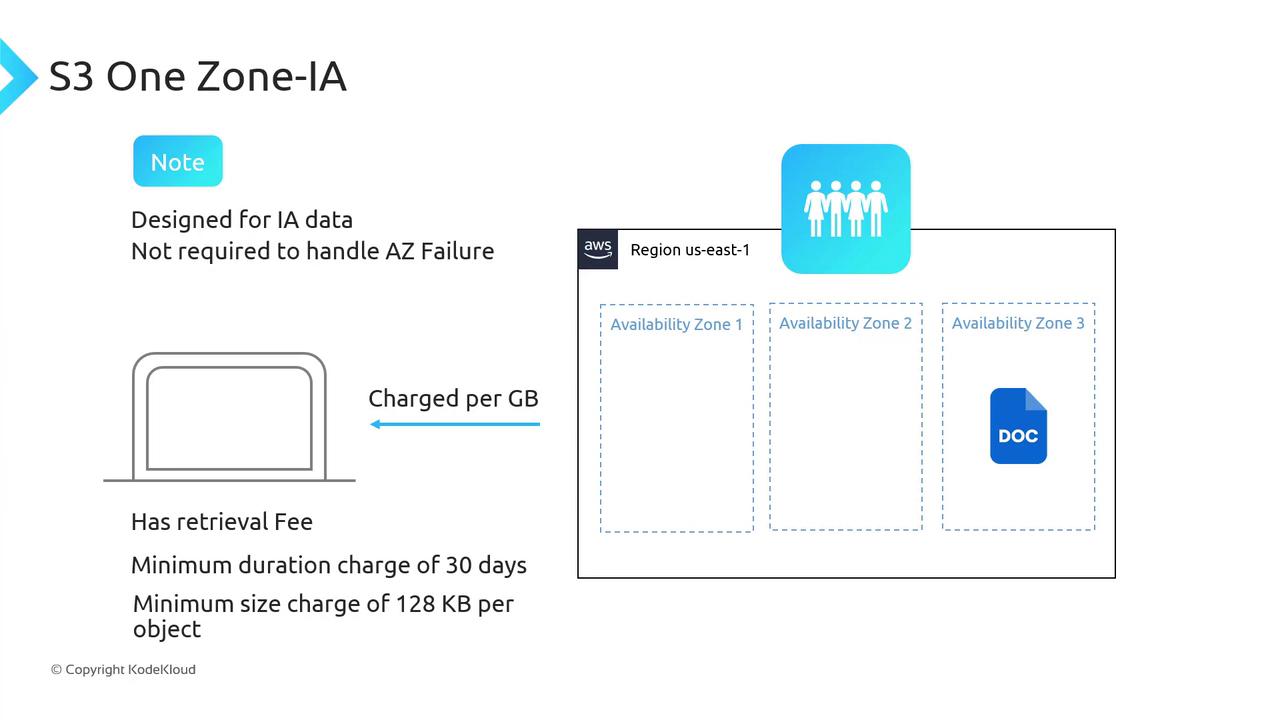
S3 One Zone-IA
Cost-optimized for infrequently accessed data not requiring multi-AZ resilience:
Durability: Stored in a single AZ
Latency: Millisecond access
Pricing:
Storage: lowest among IA classes
Retrieval fee: per GB + egress rate
Minimum duration: 30 days
Minimum object size: 128 KB
Warning
One Zone-IA stores data in a single Availability Zone. If that AZ fails, your objects become unavailable.
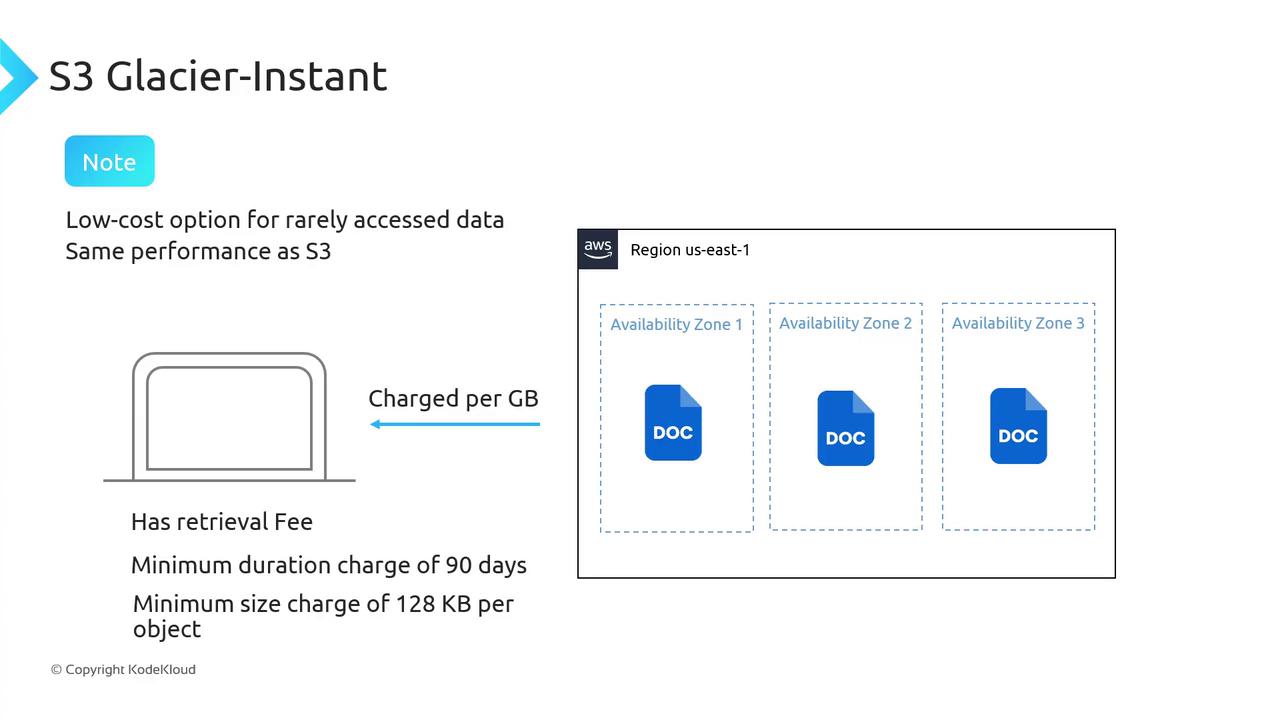
S3 Glacier Instant Retrieval
Archival storage with immediate access for rare use cases:
Durability & resiliency: Same as Standard (≥3 AZs)
Latency: Millisecond retrieval
Pricing:
Storage: archival rate per GB
Retrieval fee: per GB
Minimum duration: 90 days
Minimum object size: 128 KB
Note
Not recommended for direct website hosting—use S3 Standard for public assets.
S3 Glacier Flexible Retrieval
Previously known as “Glacier,” suitable for archive data with retrieval delays:
Availability: Objects must be restored before access
Pricing:
Storage: slightly lower per GB than Standard-IA
Retrieval fee: varies by retrieval tier
Minimum duration: 90 days
Minimum object size: 40 KB
Retrieval Tiers
Expedited: 1–5 minutes
Standard: 3–5 hours
Bulk: 5–12 hours
Restored objects are copied to Standard-IA for the duration of your restore request.
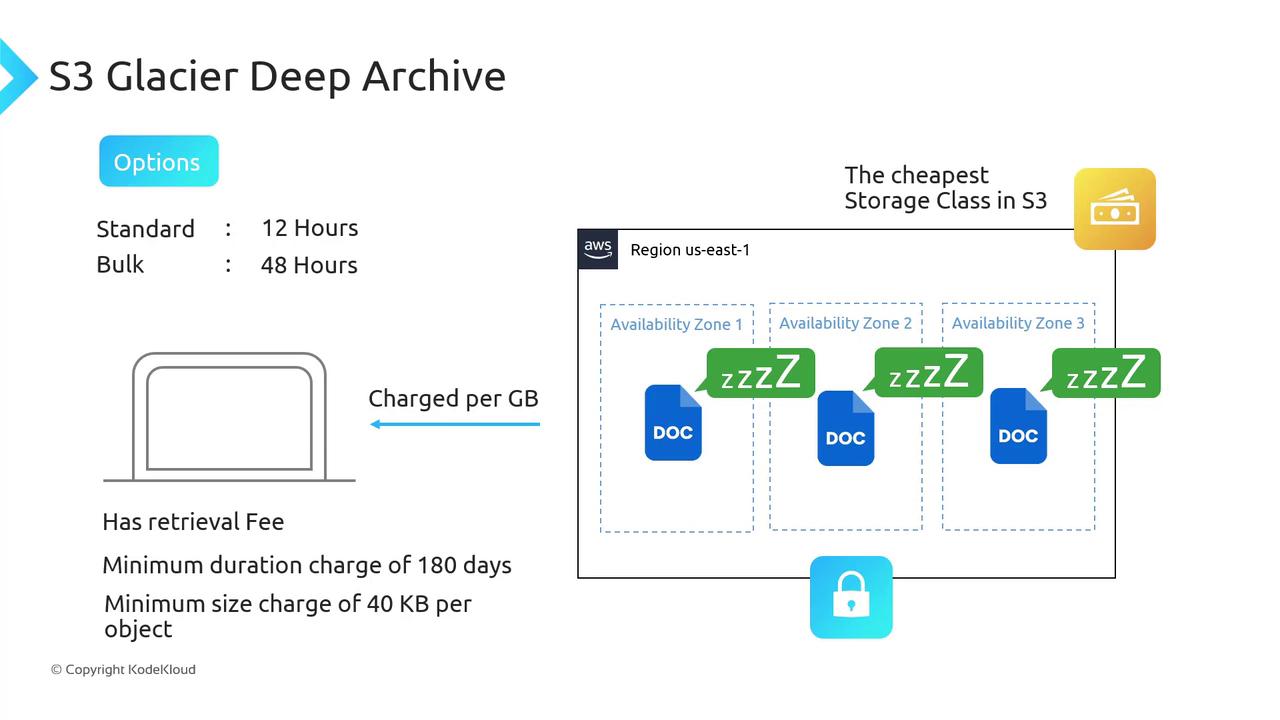
S3 Glacier Deep Archive
The lowest-cost class for data accessed once or twice a year:
Availability: Retrieval can take hours or days
Pricing:
Storage: lowest in Amazon S3
Retrieval fee: per GB + tier fee
Minimum duration: 180 days
Minimum object size: 40 KB
Retrieval Tiers
Standard: up to 12 hours
Bulk: up to 48 hours
S3 Intelligent Tiering
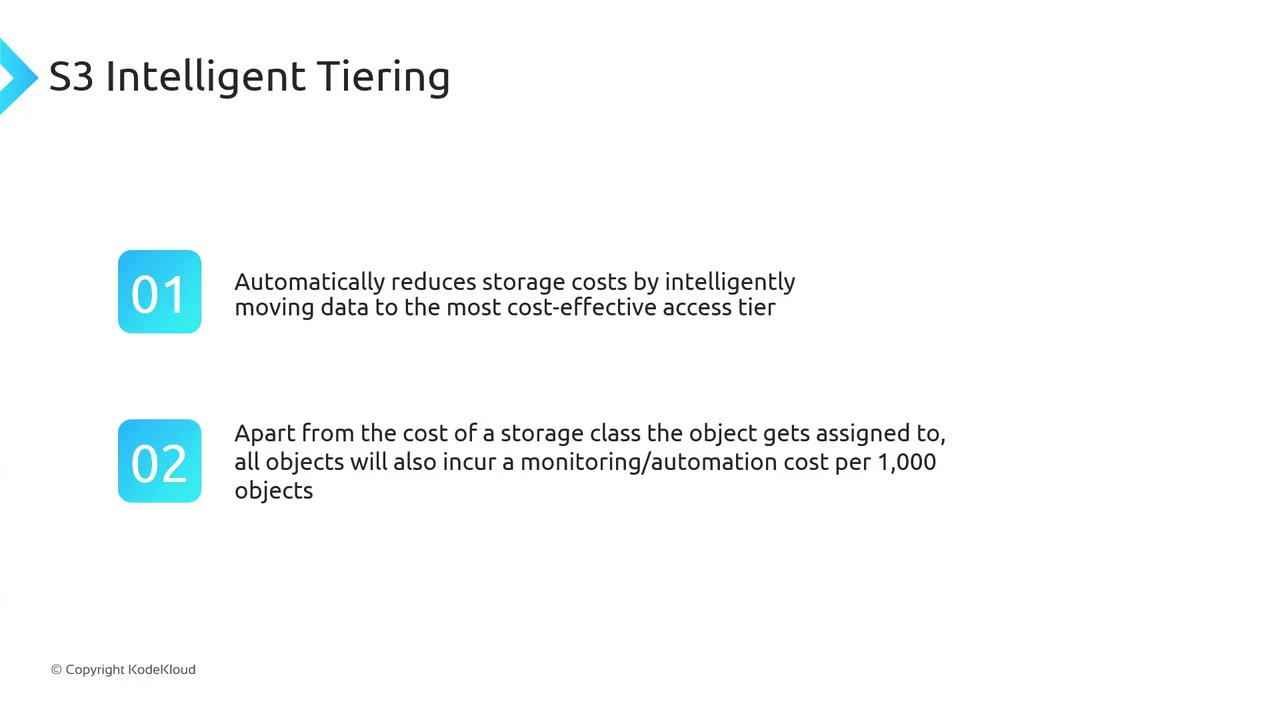
Automatically optimizes costs for data with unknown or changing access patterns:
Automated monitoring moves objects between frequent & infrequent tiers
No retrieval fees for tier transitions
Monitoring & automation charge: per 1,000 objects
Note
Enable Intelligent Tiering to reduce manual effort and optimize monthly storage bills.
Selecting the Right S3 Storage Class
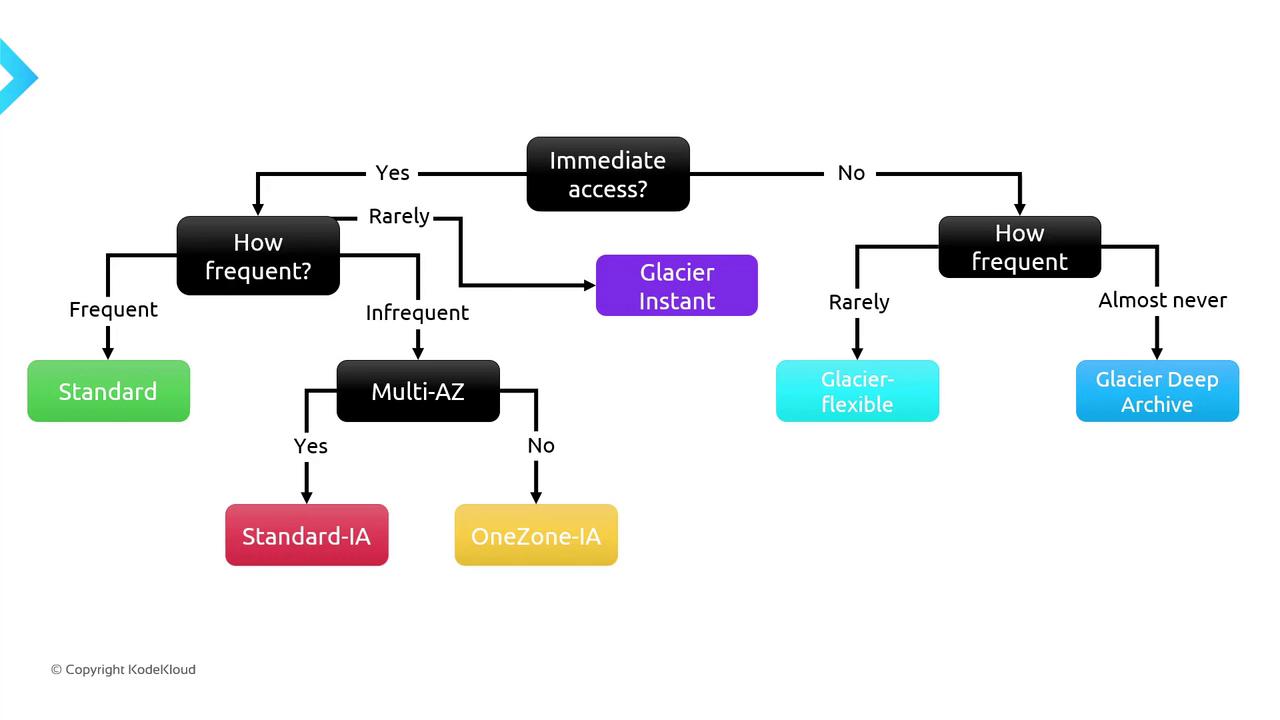
Use the decision flowchart below to pick the optimal storage class based on access frequency and immediacy:
Immediate (millisecond) access?
Yes → Frequency?
Frequent → S3 Standard
Infrequent → Multi-AZ?
Yes → Standard-IA
No → One Zone-IA
Rare → Glacier Instant Retrieval
No → Frequency?
Almost never → Glacier Deep Archive
Occasionally → Glacier Flexible Retrieval
Storage Classes Demo
Learn how to specify and change the storage class of objects in Amazon S3 using the AWS Management Console. This guide covers uploading files with a custom storage class and modifying it afterward.
Prerequisites
An AWS account with S3 access.
IAM user permissions:
s3:CreateBucket,s3:PutObject,s3:PutObjectStorageClass.Familiarity with the Amazon S3 console.
Note
Choosing the right storage class balances cost, durability, and retrieval time. Review S3 pricing before proceeding.
1. Create a New S3 Bucket
Open the Amazon S3 console.
Click Create bucket.
Enter Bucket name:
kk-sc-demo.Leave default settings and click Create bucket.
2. Upload an Object with a Custom Storage Class
In the kk-sc-demo bucket, click Upload.
Choose Add files and select your file.
Under Properties, expand Storage class and select One Zone-IA (default is Standard).
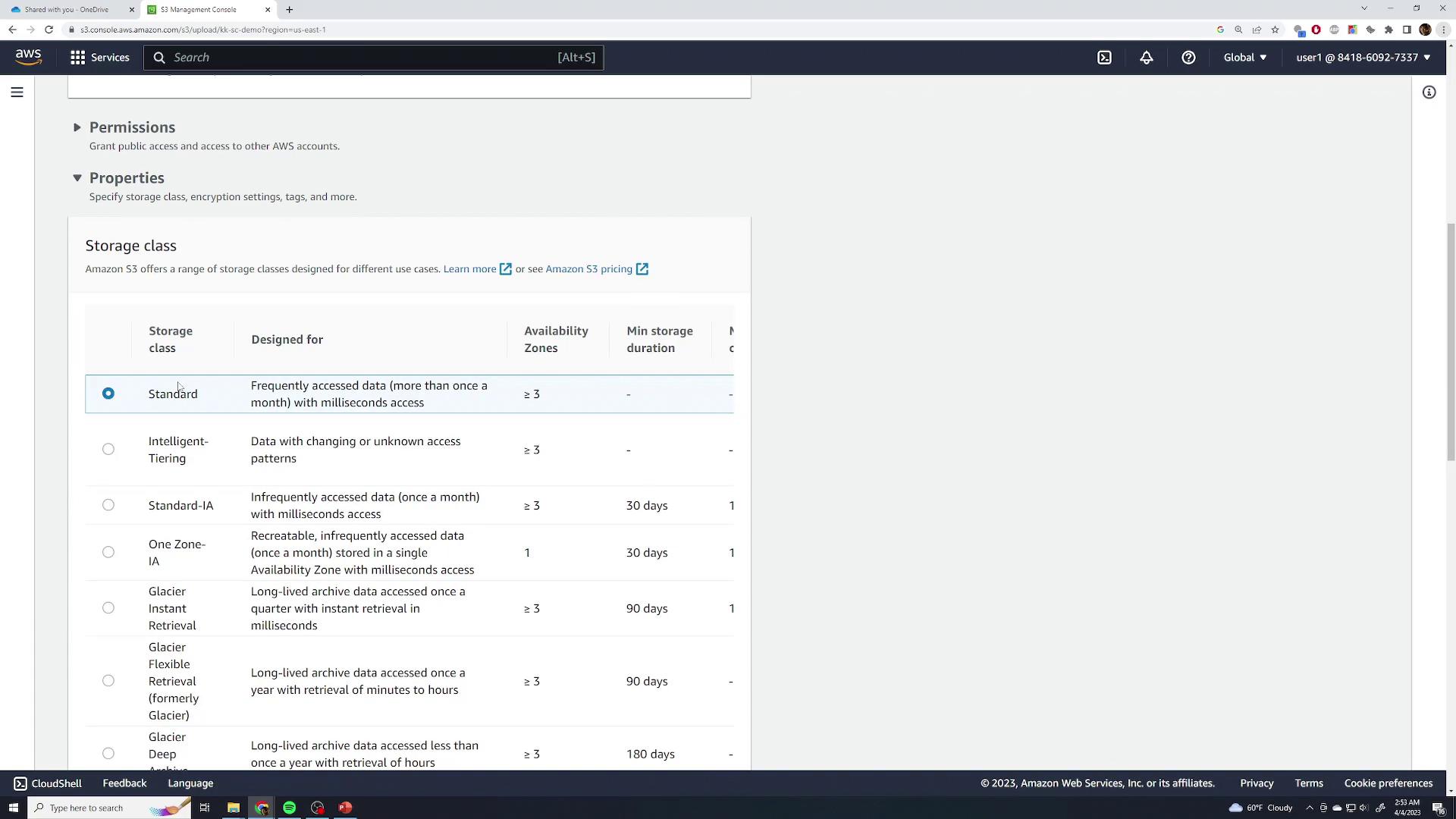
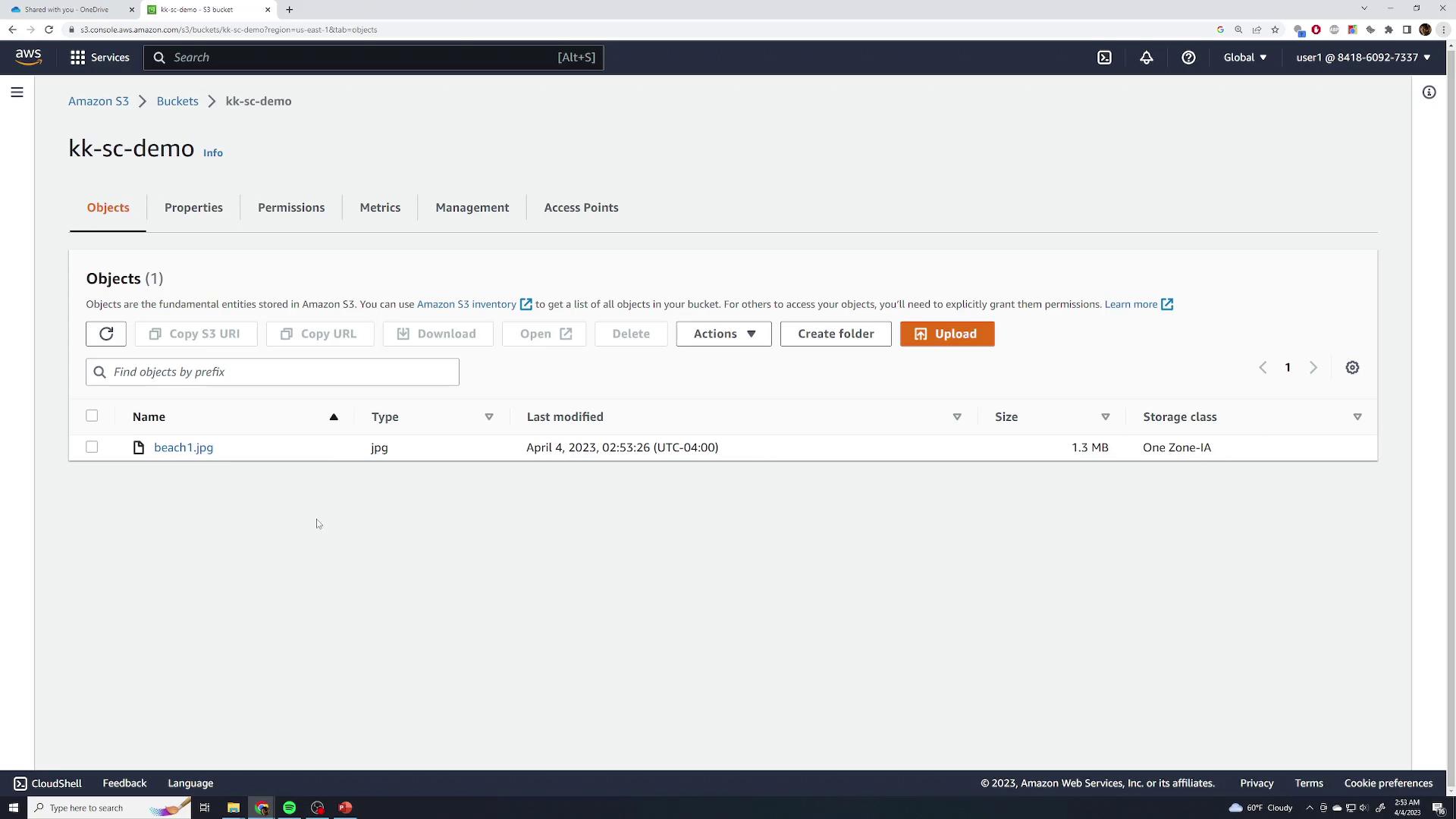
- Click Upload. The object now appears with the specified storage class.
Storage Class Comparison
| Storage Class | Use Case | Min. Storage Duration | Durability & Availability |
| Standard | Frequent access | None | 99.999999999% durability, 99.99% avail. |
| One Zone-IA | Infrequent access, lower cost | 30 days | 99.999999999% durability, single AZ |
| Intelligent-Tiering | Unknown/variable access patterns | 30 days | Auto-optimizes cost |
| Glacier Flexible Retrieval | Long-term archive, infrequent access | 90 days | 99.999999999% durability, minutes retrieval |
| Glacier Deep Archive | Archival with minimal retrieval | 180 days | Lowest-cost archival storage |
Warning
Archival classes (Glacier) incur retrieval fees and can take from minutes to hours.
3. Change the Storage Class of an Existing Object
In the kk-sc-demo bucket, select the object (e.g.,
beach1.jpg).Choose Actions → Change storage class.
Select Standard (or another class) and click Save.
Create Bucket using AWS CLI
In this guide, we'll explore essential Amazon S3 operations—listing, creating, deleting buckets, and managing objects—using the AWS CLI. Automate your workflows and integrate these commands into scripts for seamless infrastructure management.
Prerequisites
AWS CLI installed and configured (
aws configure)IAM permissions to list, create, and delete S3 buckets and objects
Unique bucket names (globally unique across AWS)
Note
Before creating a bucket, verify the name’s availability. Bucket names must be globally unique and compliant with DNS naming conventions.
Quick Reference: Common S3 CLI Commands
| Operation | Command | Description |
| List Buckets | aws s3 ls | Display all S3 buckets in the account |
| Create Bucket | aws s3 mb s3://<bucket-name> --region ... | Make a new bucket in a specified region |
| Delete Bucket | aws s3 rb s3://<bucket-name> [--force] | Remove an empty bucket or delete recursively |
| List Objects | aws s3 ls s3://<bucket> | Show top-level objects and prefixes |
| Copy Files/Dirs | aws s3 cp <src> <dest> [--recursive] | Copy files between local and S3 |
| Move Files/Dirs | aws s3 mv <src> <dest> [--recursive] | Move files between local and S3 |
| Sync Directories | aws s3 sync <local> s3://<bucket> | Sync only new or changed files |
| Delete Objects | aws s3 rm s3://<bucket>/<key> [--recursive] | Remove objects or entire prefixes |
1. Listing S3 Buckets
Retrieve all buckets in your AWS account:
$ aws s3 ls
2023-03-29 00:51:27 bucket1
2023-03-28 02:22:48 bucket2
2023-03-28 02:20:43 bucket3
2. Creating a New Bucket
Use the make bucket command and specify a region:
$ aws s3 mb s3://newbucket --region us-east-1
make_bucket: newbucket
3. Deleting a Bucket
Remove an empty bucket:
$ aws s3 rb s3://newbucket
remove_bucket: newbucket
To delete a bucket and all its contents, add --force:
$ aws s3 rb s3://newbucket --force
remove_bucket: newbucket
Warning
Using --force is irreversible. All objects in the bucket will be permanently deleted.
4. Listing Objects Inside a Bucket
4.1 Top-Level Listing
List prefixes (folders) and files at the root of the bucket:
$ aws s3 ls s3://newbucket
                           PRE logs/
                           PRE media/
2023-03-29 01:38:08          0 file1.txt
2023-03-29 01:38:09          0 file2.txt
4.2 Recursive Listing
Show every object under the bucket:
$ aws s3 ls s3://newbucket --recursive
2023-03-29 01:38:08          0 file1.txt
2023-03-29 01:38:09          0 file2.txt
2023-03-29 01:38:09          0 logs/log1
2023-03-29 01:38:09          0 logs/log2
2023-03-29 01:38:10      24599 media/images/image1.png
2023-03-29 01:38:10      21420 media/images/image2.png
5. Copying Files
5.1 Local → S3
Upload a file without deleting the source:
$ aws s3 cp file1.txt s3://newbucket
upload: ./file1.txt to s3://newbucket/file1.txt
5.2 S3 → Local
Download an object to a local directory:
$ aws s3 cp s3://newbucket/file1.txt /tmp/
download: s3://newbucket/file1.txt to ./tmp/file1.txt
5.3 S3 → S3
Copy between two buckets:
$ aws s3 cp s3://bucket1/file1.txt s3://bucket2/
copy: s3://bucket1/file1.txt to s3://bucket2/file1.txt
6. Deleting Objects
6.1 Single Object
$ aws s3 rm s3://bucket/404.html
delete: s3://bucket/404.html
6.2 Multiple Objects (Recursive)
$ aws s3 rm s3://bucket/logs/ --recursive
delete: s3://bucket/logs/log1
delete: s3://bucket/logs/log2
7. Directory Operations
Most S3 CLI commands support --recursive to process all files under a directory or prefix.
7.1 Copy an Entire Directory
$ aws s3 cp media/ s3://newbucket --recursive
7.2 Move Files and Directories
Use mv to transfer and remove the source:
# Local → S3
$ aws s3 mv file1.txt s3://newbucket
move: ./file1.txt to s3://newbucket/file1.txt


# S3 → Local
$ aws s3 mv s3://newbucket/file1.txt /tmp/
move: s3://newbucket/file1.txt to ./tmp/file1.txt


# Recursive Move
$ aws s3 mv media/ s3://newbucket --recursive
8. Synchronizing Directories
Keep a local folder and an S3 prefix in sync. Only new or updated files transfer:
$ aws s3 sync /path/to/local/dir s3://bucket
upload: home/bob to s3://bucket/home/bob
upload: var/log  to s3://bucket/var/log
Adding new files (for example, etc/ssh) and rerunning uploads only those:
$ aws s3 sync /path/to/local/dir s3://bucket
upload: etc/ssh to s3://bucket/etc/ssh
Demo Create Bucket using AWS CLI
Now, you’ll master using the AWS CLI to manage Amazon S3 buckets and objects. We’ll walk through listing buckets, creating buckets, copying and moving files, syncing directories, and cleaning up objects and buckets—all with practical examples.
Prerequisites
AWS CLI v2 installed and configured with appropriate IAM permissions.
Basic familiarity with your command-line interface (Windows, macOS, or Linux).
Note
If you haven’t installed the AWS CLI, follow the official AWS CLI installation guide.
Quick Reference: Common S3 Commands
| Operation | Command | Description |
| List all buckets | aws s3 ls | Show every S3 bucket in your AWS account |
| List bucket contents | aws s3 ls s3://BUCKET_NAME | Display objects in a specific bucket |
| Create a new bucket | aws s3 mb s3://BUCKET_NAME | Make a new bucket (region optional with --region) |
| Copy files | aws s3 cp SOURCE DESTINATION | Copy files between local and S3 or between buckets |
| Move files | aws s3 mv SOURCE DESTINATION | Move files (source deleted after successful copy) |
| Sync directories | aws s3 sync SOURCE DESTINATION | Mirror a directory (uploads only new or changed files) |
| Delete objects | aws s3 rm s3://BUCKET_NAME/OBJECT | Remove a single object |
| Delete a bucket | aws s3 rb s3://BUCKET_NAME | Remove a bucket (use --force to delete all objects first) |
1. Listing Buckets and Contents
1.1 List All Buckets
aws s3 ls
Example output:
2023-04-05 19:01:36 kk-demo-117
2023-04-05 19:02:15 kk-demo-files
2023-04-05 18:51:39 kk-static-demo
1.2 List Objects in a Bucket
aws s3 ls s3://kk-static-demo
Sample:
2023-04-05 18:52:06     458  404.html
2023-04-05 18:52:07     414  index.css
2023-04-05 18:52:07    1136  index.html
1.3 Recursive Listing
aws s3 ls s3://kk-static-demo --recursive
This shows all objects, including those in nested “folders.”
2. Creating a Bucket
Use mb (make bucket) and specify a region if needed:
aws s3 mb s3://kk-cli-demo1 --region us-east-1
Output:
make_bucket: kk-cli-demo1
Verify by listing buckets again:
aws s3 ls
3. Copying Files with cp
3.1 Local → S3
Upload a single file:
aws s3 cp file1 s3://kk-cli-demo1
Rename while uploading:
aws s3 cp file2 s3://kk-cli-demo1/secondfile.txt
3.2 S3 → Local
Download an object to your current directory:
aws s3 cp s3://kk-cli-demo1/secondfile.txt .
3.3 Bucket-to-Bucket Copy
aws s3 cp s3://kk-cli-demo1/file1 s3://kk-static-demo/file1
4. Moving Files with mv
The mv command copies then deletes the source.
4.1 Local → S3
aws s3 mv file3 s3://kk-cli-demo1
4.2 S3 → Local
aws s3 mv s3://kk-cli-demo1/file3 .
5. Copying Directories Recursively
To upload an entire folder:
aws s3 cp media/ s3://kk-cli-demo1 --recursive
Verify the structure:
aws s3 ls s3://kk-cli-demo1 --recursive
6. Deleting Objects
Remove a single file:
aws s3 rm s3://kk-static-demo/file1
Warning
Deleting objects is irreversible. Double-check the object key before running aws s3 rm.
7. Syncing Directories
Make the destination mirror your source directory:
aws s3 sync . s3://kk-cli-demo1
Only new or updated files are transferred.
8. Deleting a Bucket
Attempt to delete an empty bucket:
aws s3 rb s3://kk-cli-demo1
If the bucket isn’t empty, use:
aws s3 rb s3://kk-cli-demo1 --force
Q. In which region is the bucket starting with prefix kk-s3-cli-?
You can obtain the bucket name by using the command: aws s3 ls | grep "kk-s3-cli-".
After determining the bucket name, to retrieve the location of the bucket, execute the following command: aws s3api get-bucket-location --bucket <bucket-name>.
S3 ACLs Resource Policies
In this article, we’ll clarify how Amazon S3 secures your buckets by default, then dive deep into resource policies (bucket policies) and ACLs. You’ll learn how to grant, restrict, and block access—step by step.
Understanding Default S3 Bucket Permissions
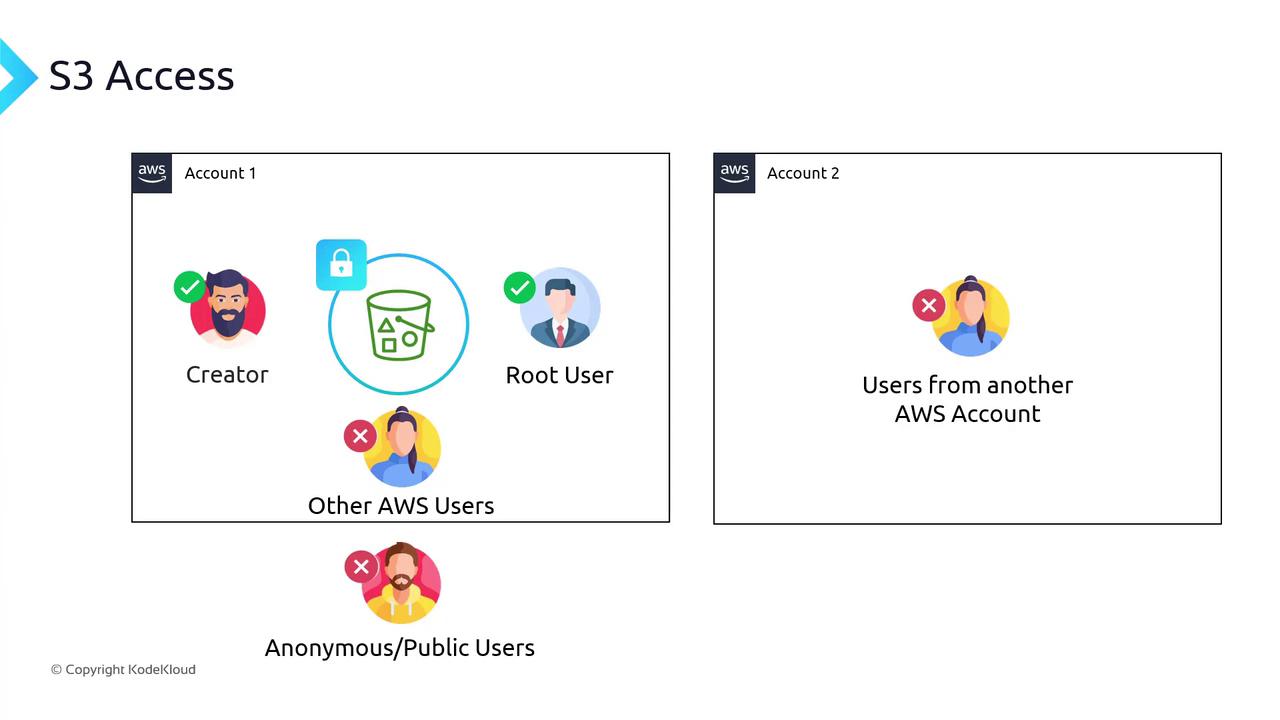
When you create a new S3 bucket:
Only the bucket creator (and the AWS root user) has access.
No other IAM users—even in your own account—can access it.
Public or anonymous users are explicitly denied until you grant permission.
Resource Policies (Bucket Policies)
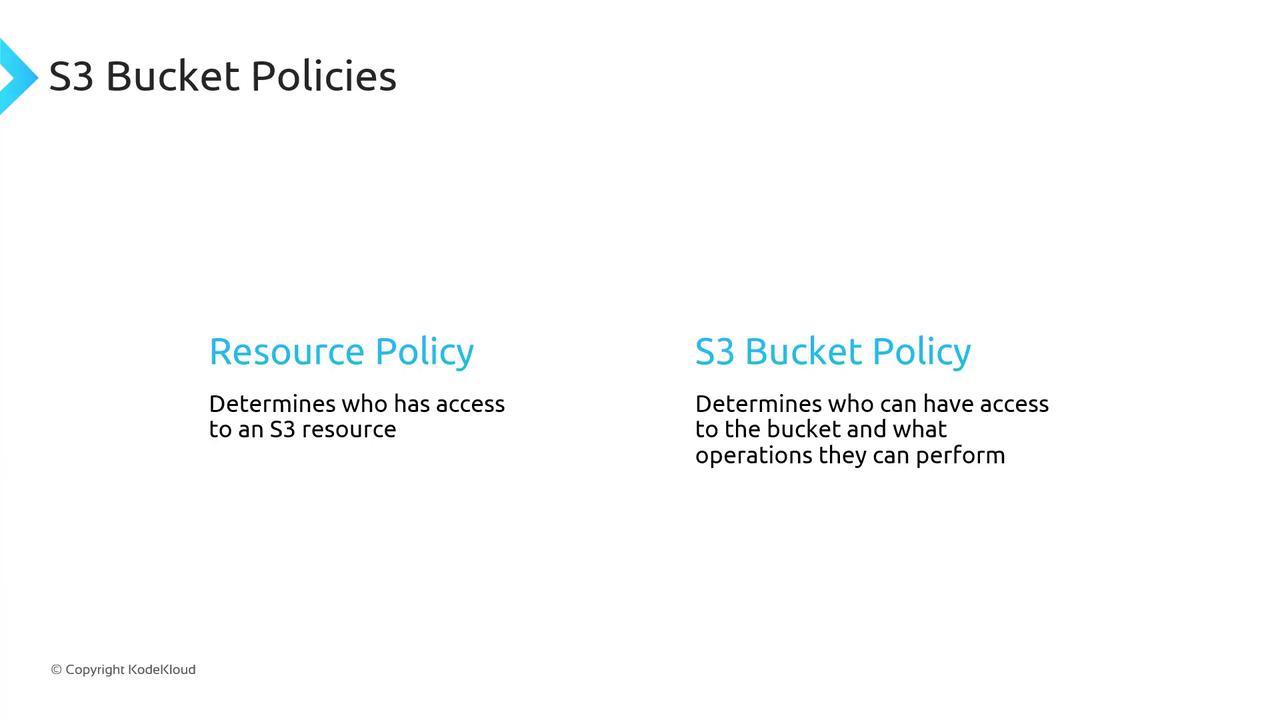
A resource policy is a JSON document attached directly to an AWS resource. For S3, this is called a bucket policy. It specifies:
Principals: Who can access
Effect: Allow or Deny
Actions: S3 operations
Resources: Which buckets or objects
Conditions (optional): Additional restrictions
Anatomy of a Bucket Policy
Below is a minimal bucket policy. Use this as a template:
{
  "Version": "2012-10-17",
  "Statement": [
    {
      "Sid": "AllowRule",
      "Principal": {
        "AWS": "arn:aws:iam::111122223333:user/JohnDoe"
      },
      "Effect": "Allow",
      "Action": ["s3:GetObject"],
      "Resource": ["arn:aws:s3:::DOC-EXAMPLE-BUCKET/*"]
    }
  ]
}
| Field | Description |
| Version | Policy language version (use 2012-10-17 unless updated by AWS). |
| Sid | Statement identifier (optional). |
| Principal | AWS account, user, role, or * (everyone). |
| Effect | Allow or Deny. |
| Action | S3 operations, e.g., s3:GetObject, s3:ListBucket, or s3:*. |
| Resource | ARN of bucket or objects, e.g., arn:aws:s3:::bucket-name or arn:aws:s3:::bucket-name/*. |
Note
Always specify the least-privilege permissions. Start by allowing only the actions and resources that are strictly required.
Multiple Statements
You can combine statements in one policy. For example, allow everyone to read objects but deny one user:
{
  "Version": "2012-10-17",
  "Statement": [
    {
      "Sid": "AllowAll",
      "Principal": "*",
      "Effect": "Allow",
      "Action": ["s3:GetObject"],
      "Resource": ["arn:aws:s3:::DOC-EXAMPLE-BUCKET/*"]
    },
    {
      "Sid": "DenyDaisy",
      "Principal": {
        "AWS": "arn:aws:iam::666438:user/DaisyM"
      },
      "Effect": "Deny",
      "Action": ["s3:GetObject"],
      "Resource": ["arn:aws:s3:::DOC-EXAMPLE-BUCKET/*"]
    }
  ]
}
A principal of
*covers all AWS users and anonymous/public users.You may add as many statements as needed.
Restricting by Prefix
To limit access to a specific “folder” (prefix):
{
  "Version": "2012-10-17",
  "Statement": [
    {
      "Sid": "AllowDaisyMedia",
      "Principal": {
        "AWS": "arn:aws:iam::666438:user/DaisyM"
      },
      "Effect": "Allow",
      "Action": ["s3:GetObject"],
      "Resource": ["arn:aws:s3:::DOC-EXAMPLE-BUCKET/media/*"]
    }
  ]
}
Adding Conditions
You can enforce network or request constraints:
{
  "Id": "PolicyId2",
  "Version": "2012-10-17",
  "Statement": [
    {
      "Sid": "AllowFromIP",
      "Effect": "Allow",
      "Principal": "*",
      "Action": "s3:*",
      "Resource": [
        "arn:aws:s3:::DOC-EXAMPLE-BUCKET",
        "arn:aws:s3:::DOC-EXAMPLE-BUCKET/*"
      ],
      "Condition": {
        "IpAddress": {
          "aws:SourceIp": ["192.0.2.0/24"]
        }
      }
    }
  ]
}
Granting Access to Multiple Folders
Use StringEquals on s3:prefix and s3:delimiter:
{
  "Id": "PolicyId3",
  "Version": "2012-10-17",
  "Statement": [
    {
      "Sid": "AllowAudioVideo",
      "Effect": "Allow",
      "Principal": "*",
      "Action": "s3:*",
      "Resource": [
        "arn:aws:s3:::DOC-EXAMPLE-BUCKET",
        "arn:aws:s3:::DOC-EXAMPLE-BUCKET/*"
      ],
      "Condition": {
        "StringEquals": {
          "s3:prefix": ["audio/", "video/"],
          "s3:delimiter": ["/"]
        }
      }
    }
  ]
}
Block Public Access Settings
Even if a bucket policy uses Principal: "*", AWS provides Block Public Access as a safety net. With these settings enabled, public policies are overridden until you disable them.
{
  "Sid": "AllowAll",
  "Effect": "Allow",
  "Principal": "*",
  "Action": "s3:*",
  "Resource": ["arn:aws:s3:::DOC-EXAMPLE-BUCKET1/*"]
}
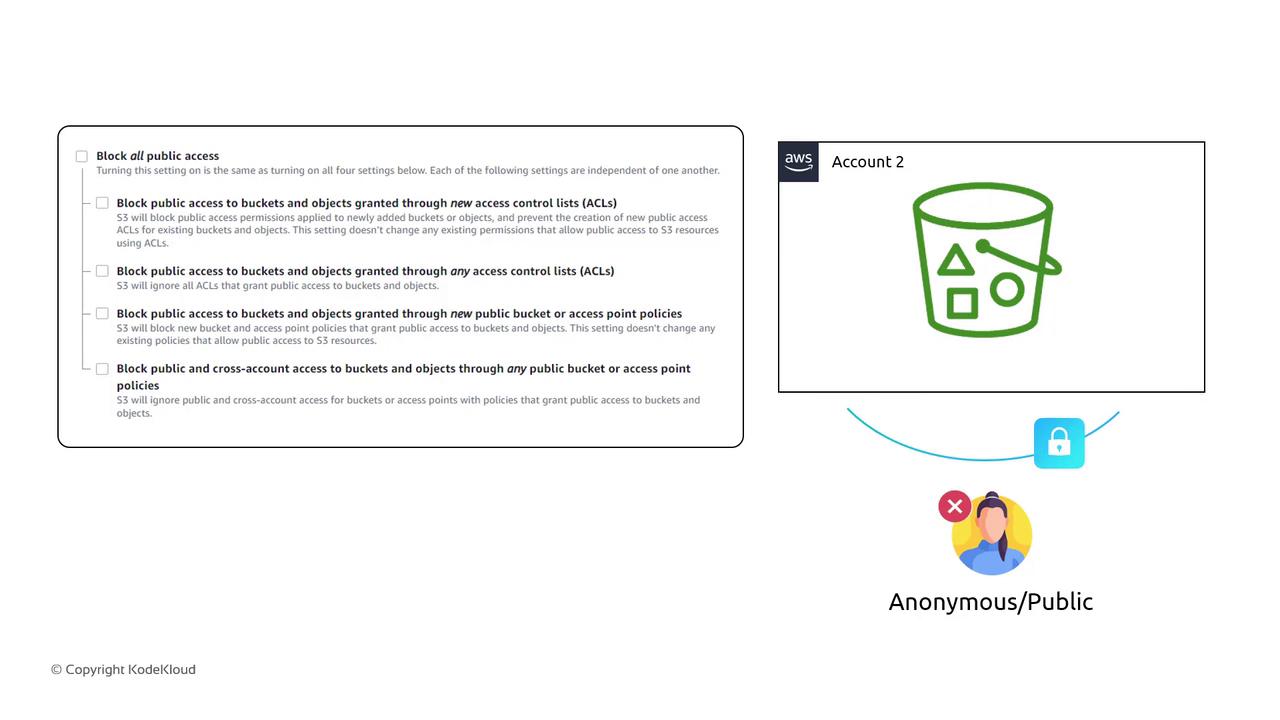
Warning
Disabling Block Public Access can expose your data to the internet. Confirm your policies and audit logs before making public.
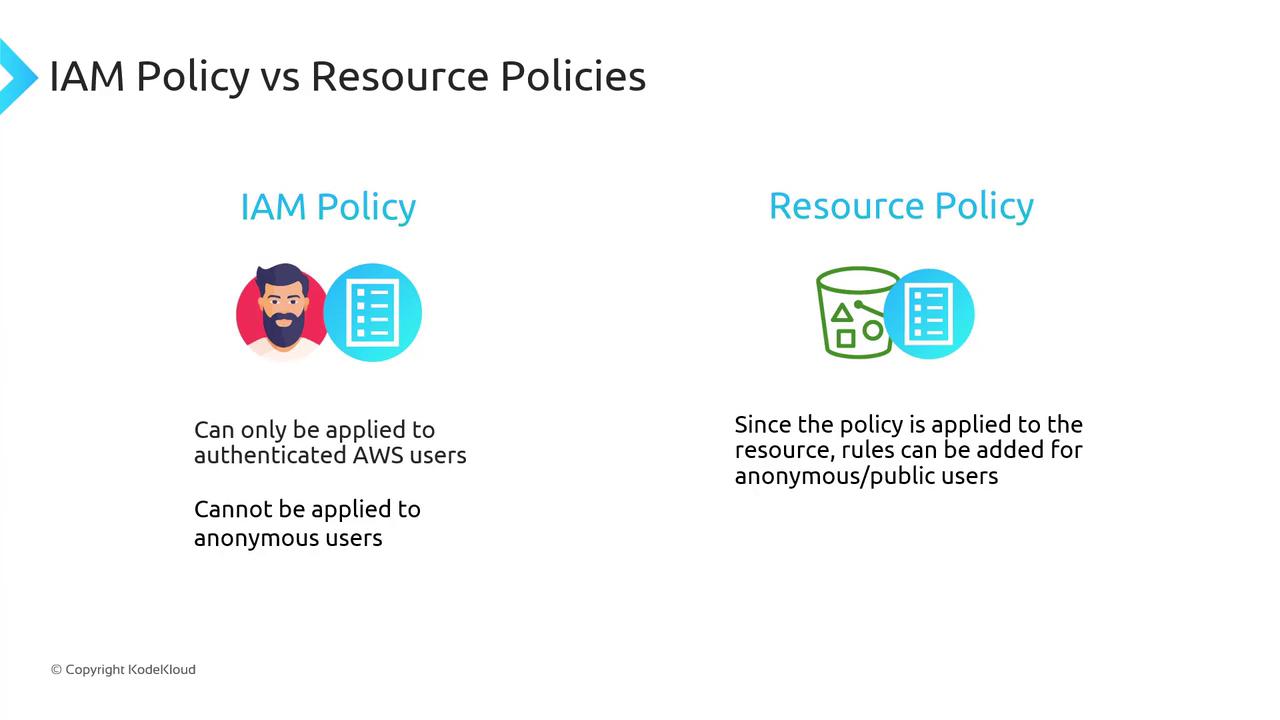
IAM Policies vs. Resource Policies
| Policy Type | Attached To | Scope | Can Include Public |
| IAM Policy | IAM user, group, or role | Authenticated AWS principals | No |
| Resource Policy | S3 bucket (or other) | Any principal (including anonymous) | Yes |
Both must allow an action for access to succeed. A deny in either one blocks access.
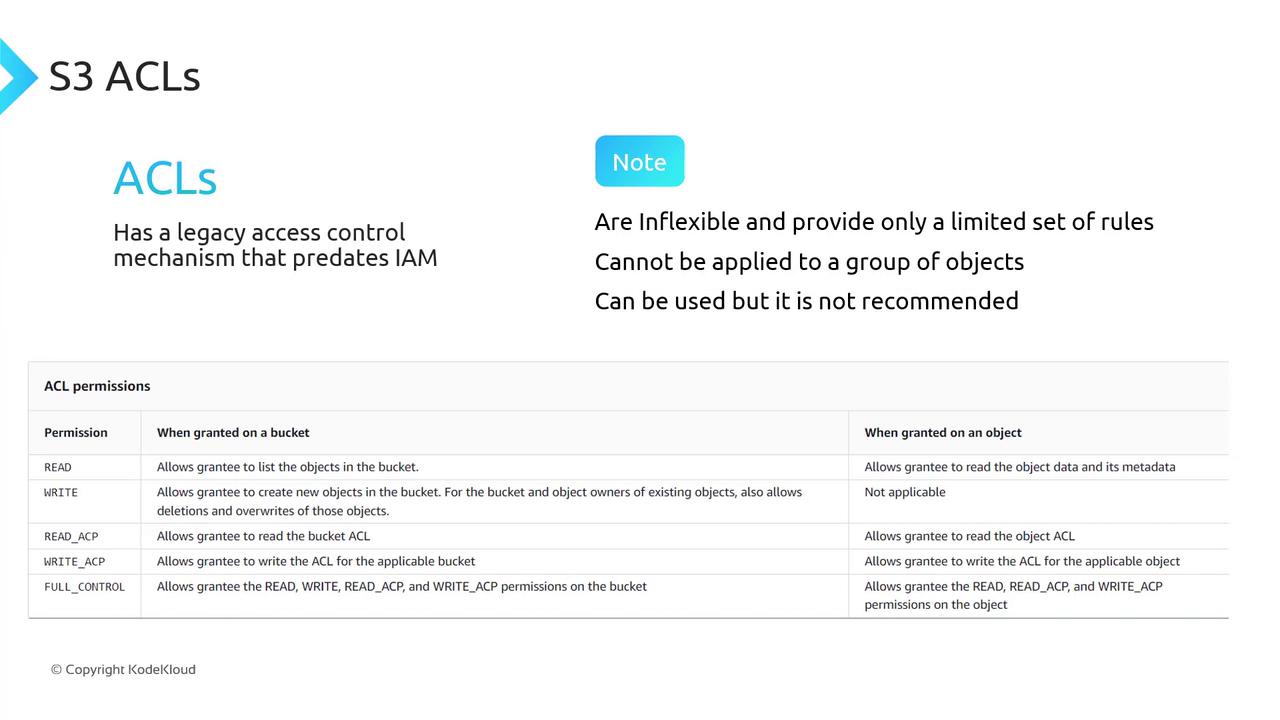
ACLs (Legacy)
S3 ACLs predate IAM and offer only five permission sets:
| ACL Permission | Description |
| READ | Read objects |
| WRITE | Write objects |
| READ_ACP | Read bucket ACL |
| WRITE_ACP | Write bucket ACL |
| FULL_CONTROL | Full control (all permissions) |
Note
AWS recommends using IAM policies and bucket policies instead of ACLs for fine-grained access control.
By combining IAM policies, bucket policies, and block public access settings, you can lock down your S3 buckets and grant exactly the permissions your applications need.
Demo S3 ACLs Resource Policies
In this guide, you’ll learn how to use AWS S3 bucket policies (resource policies) to grant or restrict access for:
Users in the same AWS account
Anonymous (public) users
Users in a different AWS account
You’ll simulate three users using browser tabs with colored labels:
Blue: Account 1, User 1 (Bucket Owner)
Green: Account 1, User 2
Yellow: Account 2, User Admin
Switch among these tabs to verify permissions.
Test Environment
| Tab Color | AWS Account | IAM Identity | Purpose |
| Blue | Account 1 | User 1 (owner) | Create bucket & edit policy |
| Green | Account 1 | User 2 | Test limited access |
| Yellow | Account 2 | User Admin | Test cross-account access |
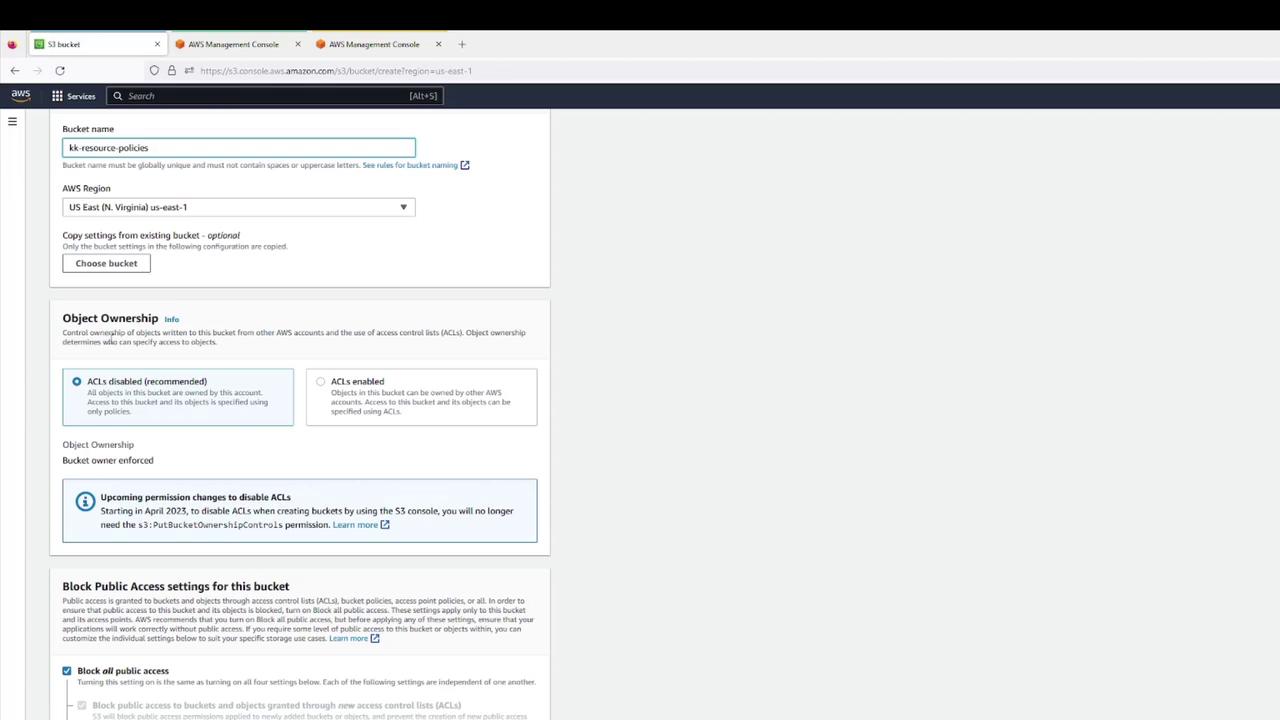
1. Create the S3 Bucket (User 1)
In the Blue tab, open the AWS S3 Console.
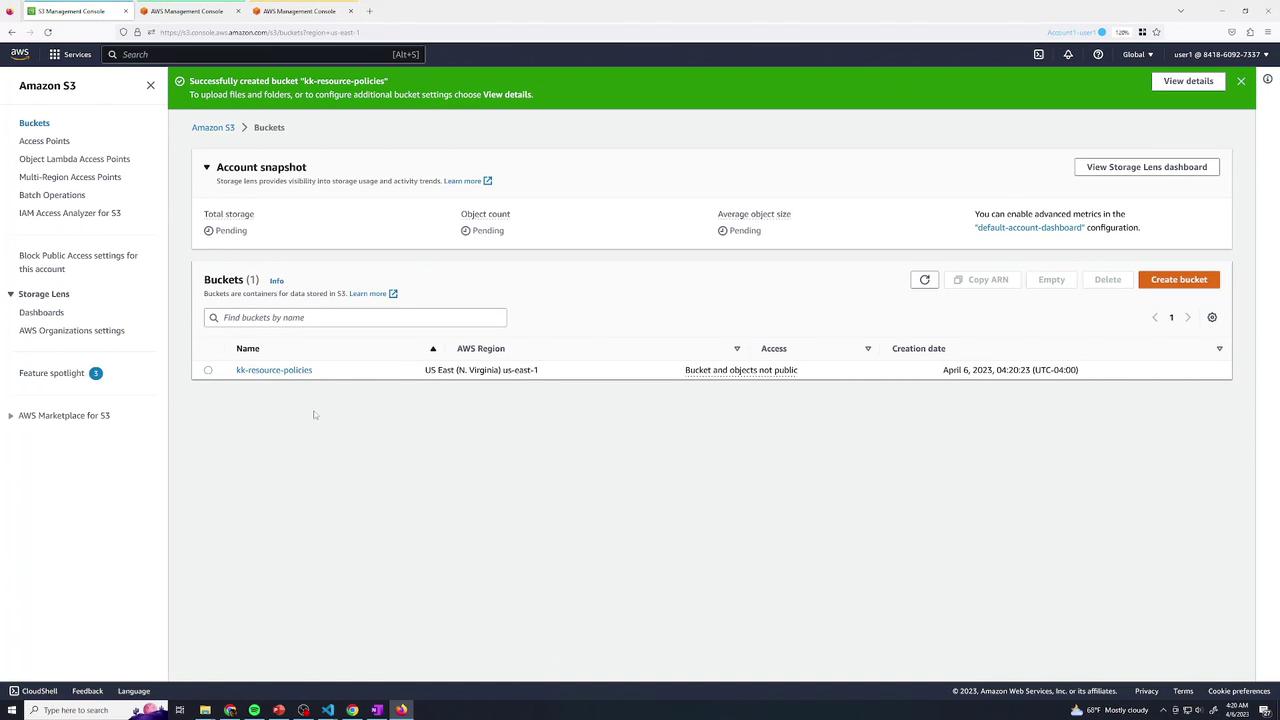
Click Create bucket and configure:
Bucket name:
kk-resource-policiesRegion: your choice
Object Ownership: Bucket owner preferred
Block all public access: Enabled
Versioning: Disabled
- Confirm creation.
- Upload a set of files (e.g., text & log files).
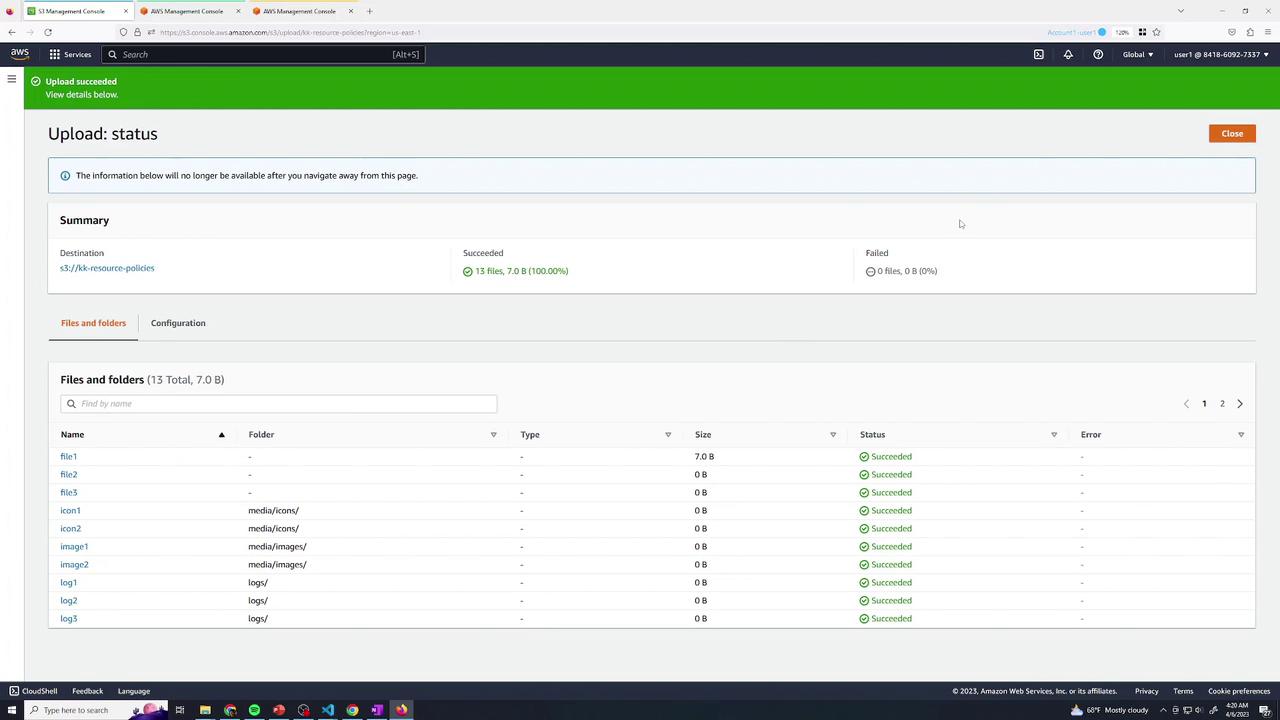
- Verify all objects are listed:
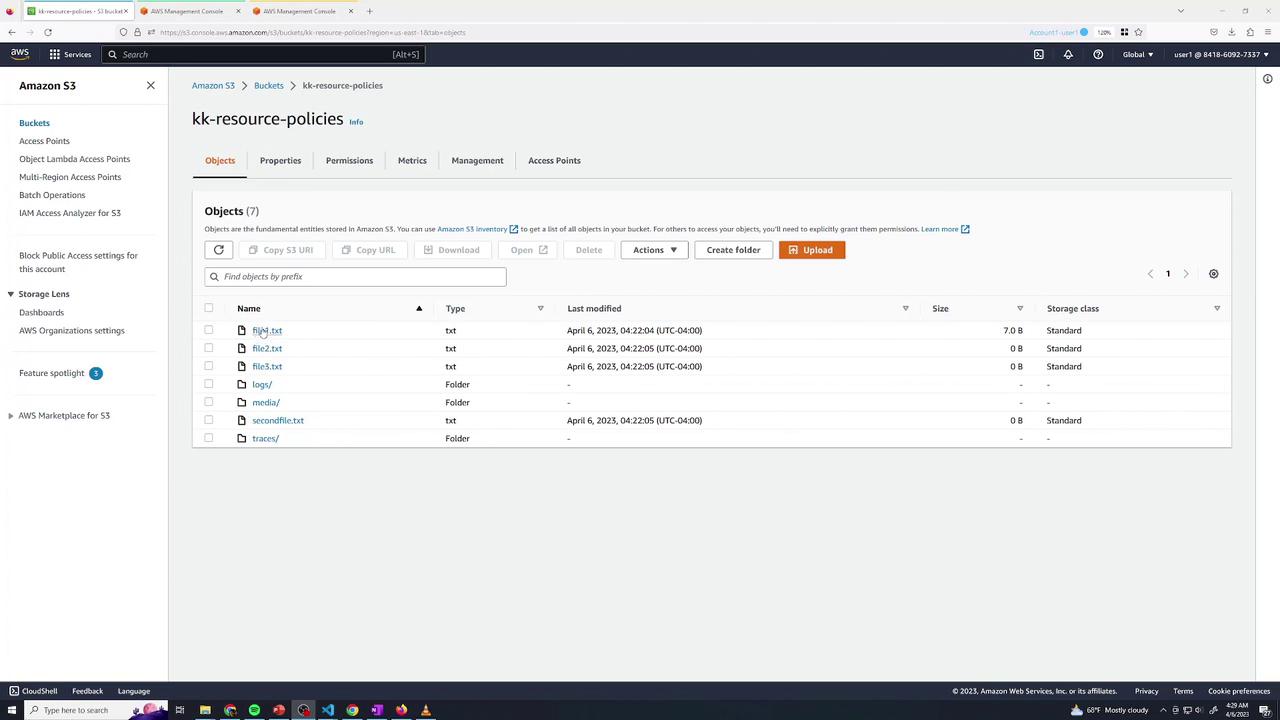
By default, as the bucket owner:
Listing and “Open” via console (authenticated) works.
Public URL returns AccessDenied:
<Error>
  <Code>AccessDenied</Code>
  <Message>Access Denied</Message>
  <RequestId>12SIDZRCRIXS94G00</RequestId>
  <HostId>…</HostId>
</Error>
2. Baseline IAM Permissions for User 2
Switch to the Green tab. User 2 currently has only list permissions:
{
  "Version": "2012-10-17",
  "Statement": [
    {
      "Sid": "ListBucketsOnly",
      "Effect": "Allow",
      "Action": [
        "s3:ListAllMyBuckets",
        "s3:ListBucket"
      ],
      "Resource": "*"
    }
  ]
}
User 2 can list buckets and objects but cannot read or delete data. Opening file1.txt returns AccessDenied.
3. Grant User 2 Read Access to logs/
Return to Blue (User 1) and edit the bucket policy under Permissions → Bucket Policy. Add:
{
  "Sid": "User2AllowLogs",
  "Effect": "Allow",
  "Principal": {
    "AWS": "arn:aws:iam::<YOUR_ACCOUNT_ID>:user/user2"
  },
  "Action": "s3:GetObject",
  "Resource": "arn:aws:s3:::kk-resource-policies/logs/*"
}
Save the policy.
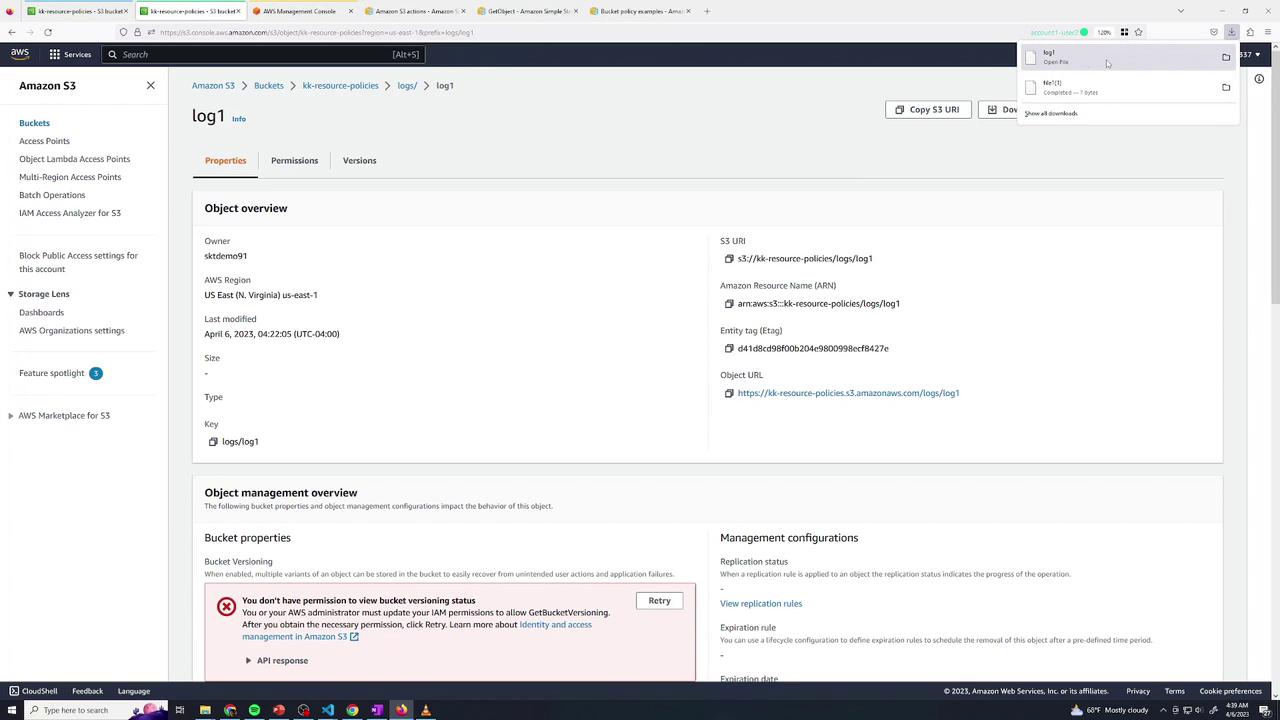
Test Read Access
In Green, open logs/log1 → download succeeds.
Attempting to open file1.txt (outside logs/) still yields AccessDenied:
<Error>
  <Code>AccessDenied</Code>
  <Message>Access Denied</Message>
  …
</Error>
4. Grant User 2 Delete Access in traces/
Back in Blue, append another statement:
{
  "Sid": "User2AllowDeleteTraces",
  "Effect": "Allow",
  "Principal": {
    "AWS": "arn:aws:iam::<YOUR_ACCOUNT_ID>:user/user2"
  },
  "Action": "s3:DeleteObject",
  "Resource": "arn:aws:s3:::kk-resource-policies/traces/*"
}
Save and switch to Green:
Deleting
traces/trace1→ SuccessDeleting
file1.txt→ AccessDenied
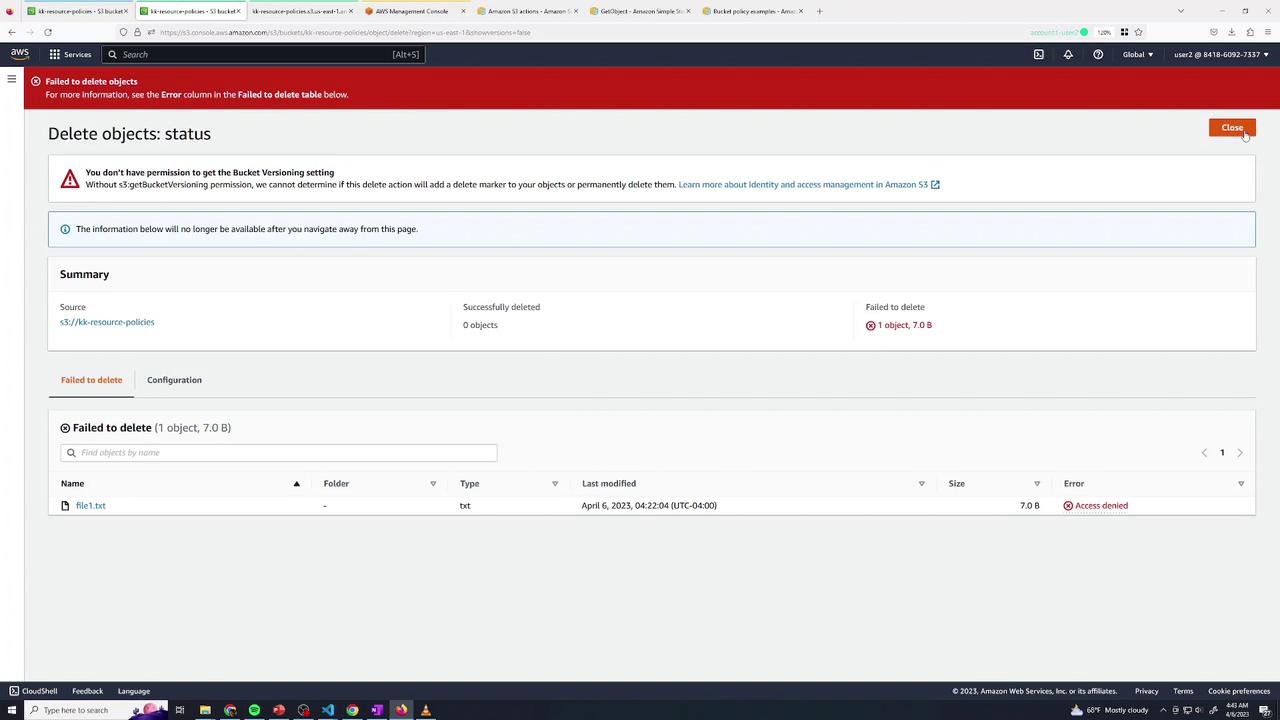
5. Combining Multiple Actions
You can merge permissions when they apply to the same resource path:
{
  "Sid": "User2GetAndDeleteLogs",
  "Effect": "Allow",
  "Principal": {
    "AWS": "arn:aws:iam::<YOUR_ACCOUNT_ID>:user/user2"
  },
  "Action": [
    "s3:GetObject",
    "s3:DeleteObject"
  ],
  "Resource": "arn:aws:s3:::kk-resource-policies/logs/*"
}
Note
Ensure that all listed actions in one statement target the same ARN pattern.
6. Allow Public Read Access to media/
To expose only the media/ prefix publicly:
In Permissions, disable “Block public access” (if enforced).
Add:
{
  "Sid": "AllowPublicMedia",
  "Effect": "Allow",
  "Principal": "*",
  "Action": "s3:GetObject",
  "Resource": "arn:aws:s3:::kk-resource-policies/media/*"
}
After saving, any object under media/ is publicly readable.
7. Grant Cross-Account Access (Account 2)
In Yellow (Account 2, User Admin), test listing:
aws s3 ls s3://kk-resource-policies
# → An error occurred (AccessDenied)
Back in Blue, append:
{
  "Sid": "AllowAccount2UserAdmin",
  "Effect": "Allow",
  "Principal": {
    "AWS": "arn:aws:iam::<SECOND_ACCOUNT_ID>:user/admin"
  },
  "Action": [
    "s3:ListBucket",
    "s3:GetObject"
  ],
  "Resource": [
    "arn:aws:s3:::kk-resource-policies",
    "arn:aws:s3:::kk-resource-policies/logs/*"
  ]
}
Save and retry in Yellow:
aws s3 ls s3://kk-resource-policies
aws s3 rm s3://kk-resource-policies/file1.txt
aws s3 rm s3://kk-resource-policies/logs/log1
# delete: s3://kk-resource-policies/logs/log1
Summary
You’ve now configured a private S3 bucket and applied these resource policy patterns:
| Scenario | Principal | Actions | Resource |
| Read-only for User 2 | arn:aws:iam::Acct1:user/user2 | s3:GetObject | kk-resource-policies/logs/* |
| Delete for User 2 | arn:aws:iam::Acct1:user/user2 | s3:DeleteObject | kk-resource-policies/traces/* |
| Combined read & delete | Same as above | s3:GetObject, s3:DeleteObject | kk-resource-policies/logs/* |
| Public read on media/ | * | s3:GetObject | kk-resource-policies/media/* |
| Cross-account list & read | arn:aws:iam::Acct2:user/admin | s3:ListBucket, s3:GetObject | Bucket & logs/* |
With these techniques—granular read, delete, public, and cross-account—you can enforce precise access control over your S3 data.


